Packages
Overview
You can manage installed extensions on your Next Design.
The following explains how to manage extensions in the following order:
- Update extensions
- Uninstall extensions
- Disable extensions
Update extensions
If a new version of an installed extension is published, you can update the extension.
To update your extension, follow these steps:
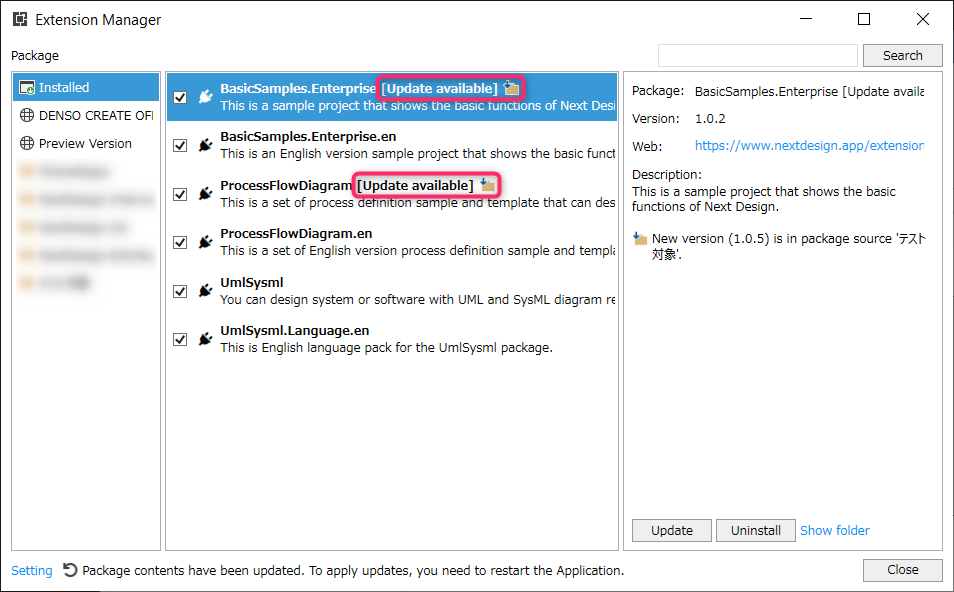
Operating instructions
- If an installed package has a new version, a notification icon will be displayed on the right side of the status bar.
- Browse to Installing official extensions > Install extensions to display the [Packages] dialog.
- Select Installed from the list on the left to see a list of installed extension packages.
- Packages that can be updated are displayed as [Updateable].
- Select the extension you want to update from the list of packages and press the [Update] button.
- Repeat step 4 if you want to update multiple extensions.
- Press the [Close] button in the [Packages] dialog.
- Follow the prompts to restart Next Design for the updated extensions to take effect.
- When Next Design restarts, your extension will be in an updated state.
Other operations
- You can also display the [Packages] dialog by pressing the notification icon displayed in step 1.
Caution
- You cannot update the extension unless you select [Installed] in step 3.
Uninstall the extension
To uninstall an extension, follow these steps:
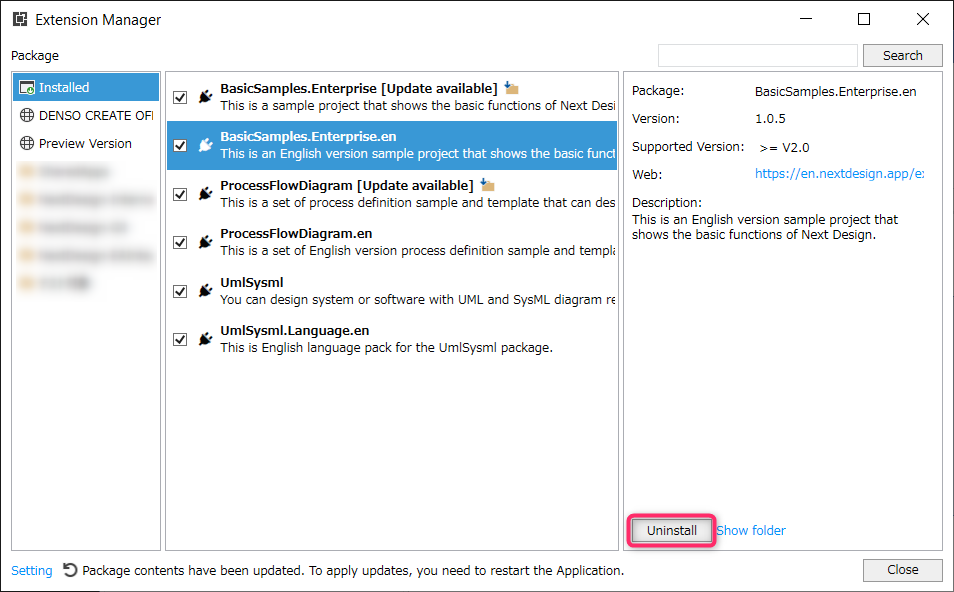
Operating instructions
- Refer to Update extensions to display the list of installed extension packages in the [Packages] dialog.
- Select the extension you want to uninstall from the list of packages and press the [Uninstall] button.
- Repeat step 2 if you want to uninstall multiple extensions.
- Press the [Close] button in the [Packages] dialog.
- Follow the prompts to restart Next Design to disable the uninstalled extension.
- When Next Design restarts, the extension will be in an uninstalled state.
Disable extensions
You can also temporarily disable installed extensions instead of uninstalling them.
To disable an extension, follow these steps:
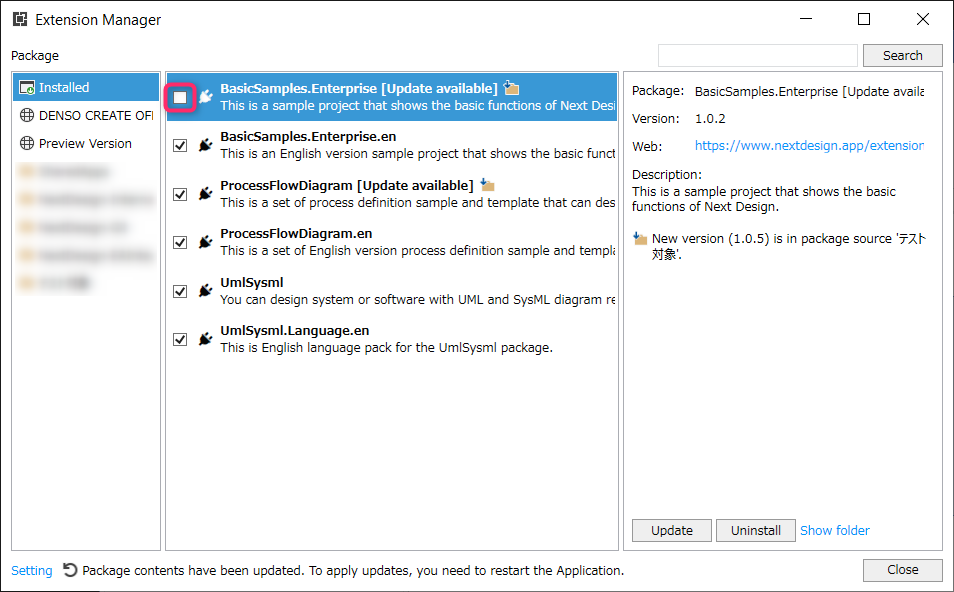
Operating instructions
- Refer to Update extensions to display the list of installed extension packages in the [Packages] dialog.
- From the list of extension packages, clear the checkbox of the package you want to disable.
- Repeat step 2 if you want to disable multiple extensions.
- Press the [Close] button in the [Packages] dialog.
- Follow the prompts to restart Next Design so that the disabled extensions are reflected in your Next Design.
- When Next Design restarts, the extension will be in a disabled state.
- If you want to re-enable a disabled extension, select the package checkbox and restart Next Design.
Caution
- If the extension package version is not x.x.x (x is any number), it cannot be disabled.
To be able to disable it, use Quick Start > Common > Distribution using package function in the extension development manual. Please refer to it and set it so that the version notation is x.x.x (x is any number).