Quick Start
Overview
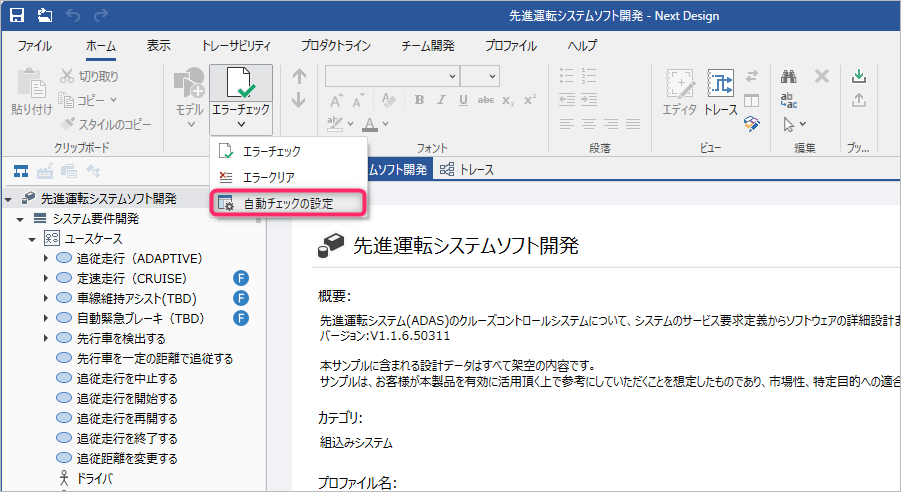
Installing the EnhancedErrorChecker package adds the following menu to Next Design, enabling automatic error checking based on your settings:
- The menu [Automatic Check Settings] is added to the [Home] > [Model] > [Check Error] menu on the ribbon.
- Selecting [Automatic Check Settings] displays the [Automatic Check Settings] dialog box.
The following describes how to start automatic error checking using the EnhancedErrorChecker package in the following order:
- Install the EnhancedErrorChecker package
- Set the timing and target of automatic error checking
Installing the EnhancedErrorChecker Package
As preparation for using the EnhancedErrorChecker package, install the EnhancedErrorChecker package using the following steps.
- Install the [EnhancedErrorChecker] package from [DENSO CREATE OFFICIAL] according to the following manual.
- After installation, restart Next Design. The EnhancedErrorChecker package will be available.
Setting the Timing and Target of Automatic Error Checking
-
Click the [Home] > [Model] > [Check Error] button on the ribbon.
-
Select [Automatic Check Settings] from the displayed menu.
-
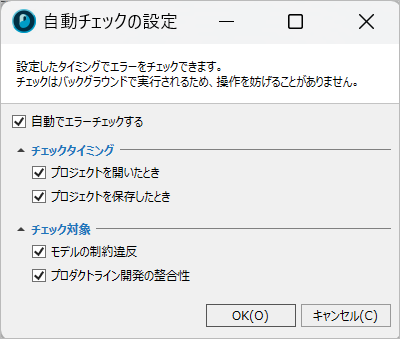
In the [Automatic Check Settings] dialog box, turn on the [Automatically check for errors] checkbox.
-
Set the check timing and check targets.
-
Click the [OK] button in the [Automatic Check Settings] dialog box.
- Automatically check for errors: Sets whether to perform automatic error checking.
- Check Timing
- When project is opened: Sets whether to perform validation when the project is opened. (This timing also includes reloading the project.)
- When project is saved: Sets whether to perform validation when the project is saved.
- Check Targets
- Model constraint violations: Sets whether to target constraints on the model.
- Product line development consistency: Sets whether to target product line consistency.
The automatic error checking for [When project is opened] starts not immediately after the project is opened, but after the background loading of the model files is complete. The same applies when the project is reloaded.
This is because performing error checking immediately after opening the project triggers the loading of model files, which prolongs the project opening time.
If background loading is interrupted by an error, or if there are model files that fail to load, those models will not be included in the check results. In this case, this will be indicated in the output window.
If an exception occurs during automatic error checking, it will not become a system error, and the error details will be displayed in the output window.