Quick Start
The functions of this package have been ported to the main program in Next Design V5.1.
This package cannot be installed in V5.1 and later, but the following functions are available as main program functions. For details, please refer to the notes in Overview.
Overview
Installing the PartialLoad.Enhanced package adds the following screen component to Next Design, making it easier to use the partial loading of model files that is standard in Next Design.
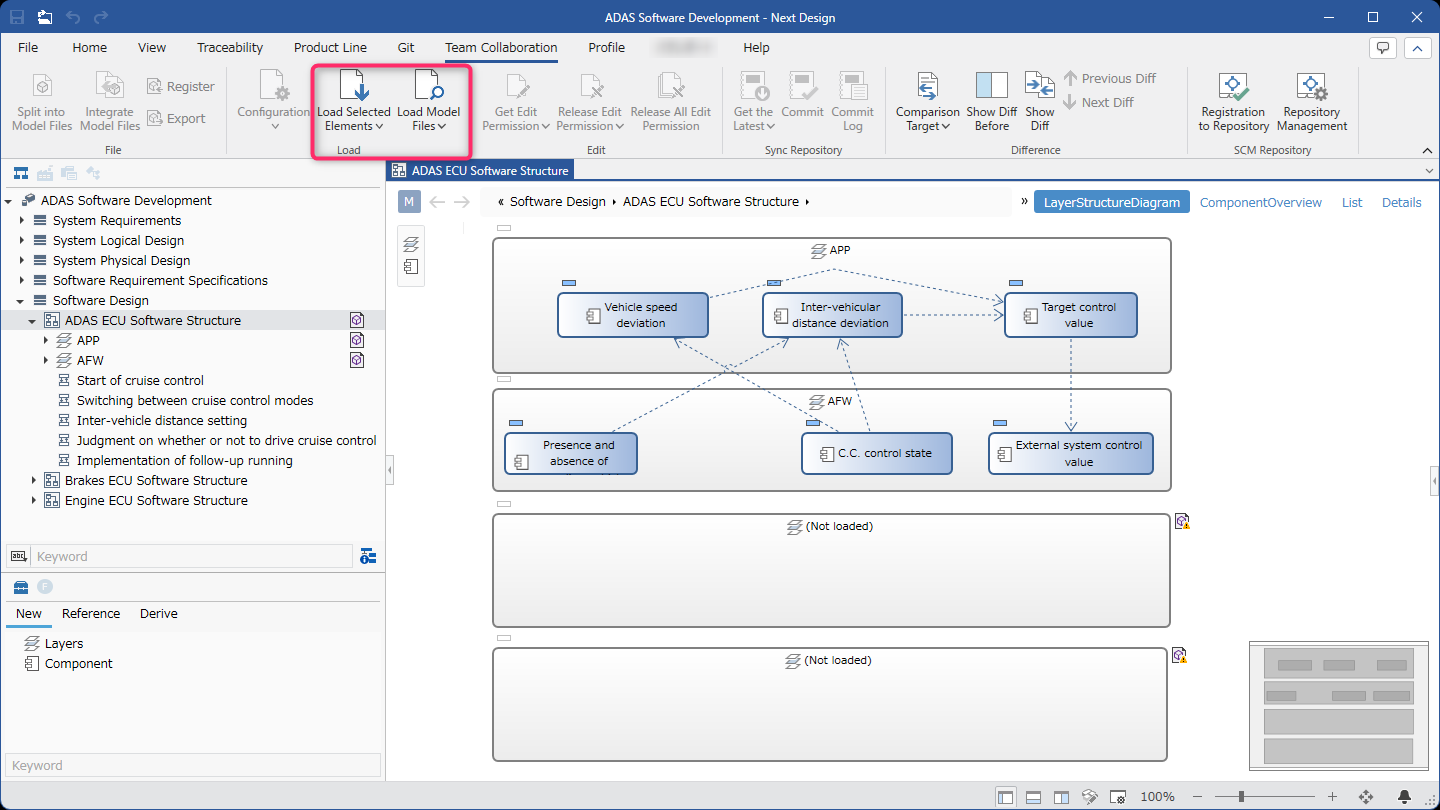
The following explains how to easily load unloaded model files using the PartialLoad.Enhanced package.
- Install extension package
- Load unloaded models from the editor
- Load all unloaded models on the editor
- Load only the unloaded model selected in the editor
- Select and load model files from the model structure
- Select and load from the model tree structure
- Select and load from related model files
Installing extension packages
To prepare for using the PartialLoad.Enhanced package, install the PartialLoad.Enhanced package using the following steps.
- Install the [PartialLoad.Enhanced] package from [DENSO CREATE OFFICIAL] according to the following manual.
- After installation, restart Next Design. A menu will be added to the [Team Collaboration] > [Load] group on the ribbon, allowing you to use the functions of this package.
Loading Unloaded Models from the Editor
Loading All Unloaded Models in the Editor
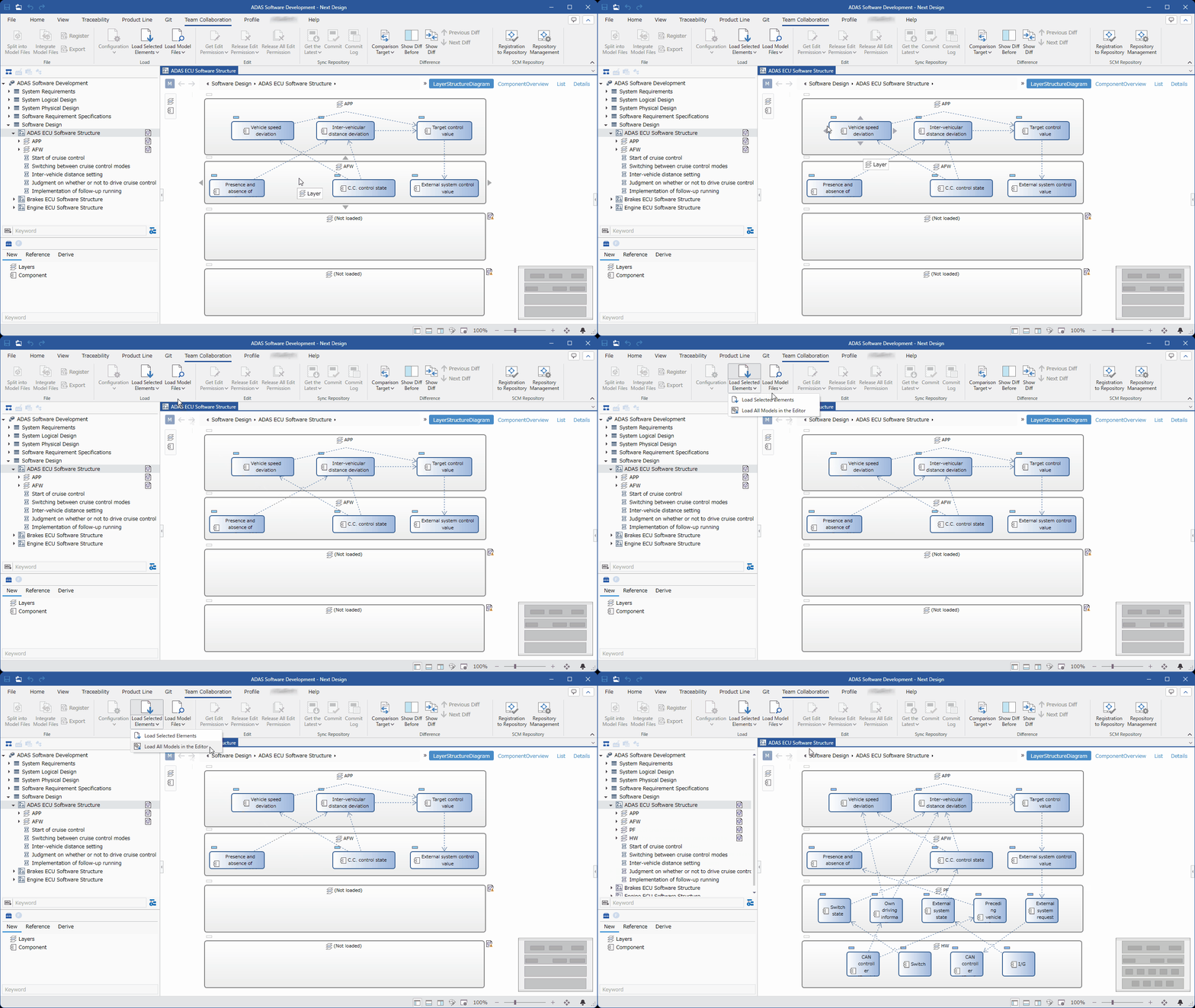
Loads all model files containing unloaded models displayed in the editor.
-
Display the editor containing the unloaded models.
-
From the ribbon, click [Team Collaboration] > [Load] > [Load Selected Elements], then click the [▼] at the bottom and select [Load All Models in Editor]. This will load the model file containing any unloaded models.
Loading Only Unloaded Models Selected in the Editor
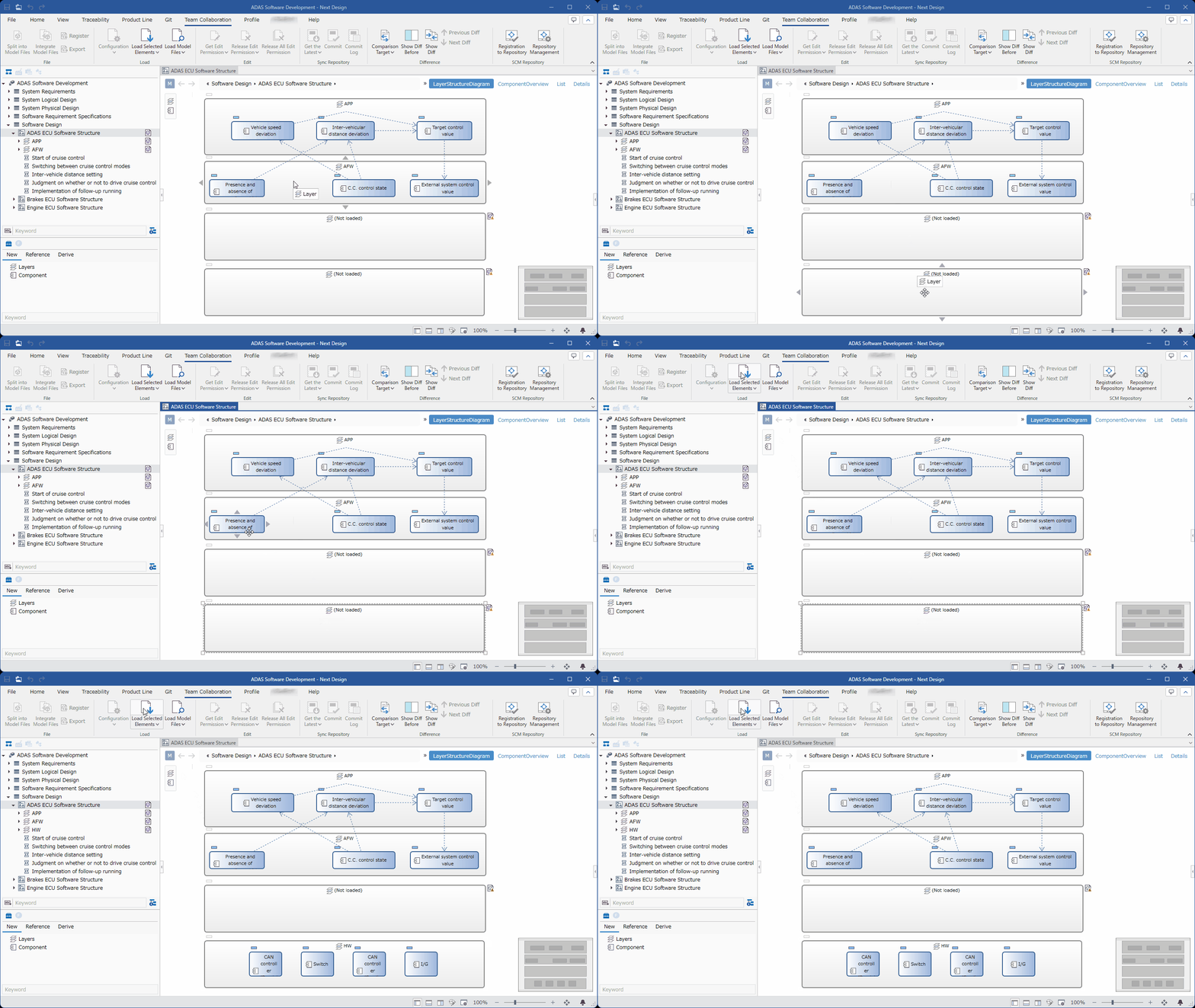
If there are unloaded models selected in the editor, this will load only the model file containing those models.
-
Select the unloaded models in the editor.
-
From the ribbon, click [Team Collaboration] > [Load] > [Load Selected Elements]. This will load the model file containing those models.
Loading a Model File by Selecting It from the Model Structure
Loading a Model File by Selecting It from the Model Tree Structure
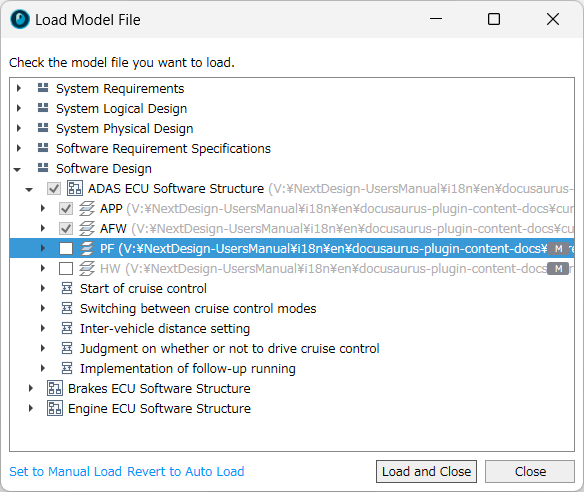
You can select and load unloaded models by navigating the tree structure similar to that of the Model Navigator.
-
From the ribbon, click [Team Collaboration] > [Load] > [Load Model File], and then click [Select from Model Structure].
-
In the [Load Model File] dialog, navigate through the model tree structure and check the models you want to load.
-
Click the [Load and Close] button to load the model file containing the checked models.
- Clicking [Set Manual Load] or [Set Auto Load] at the bottom of the [Load Model File] dialog box allows you to change the loading settings for the model file, including the one selected in the dialog box.
Loading by Selecting from Related Model Files
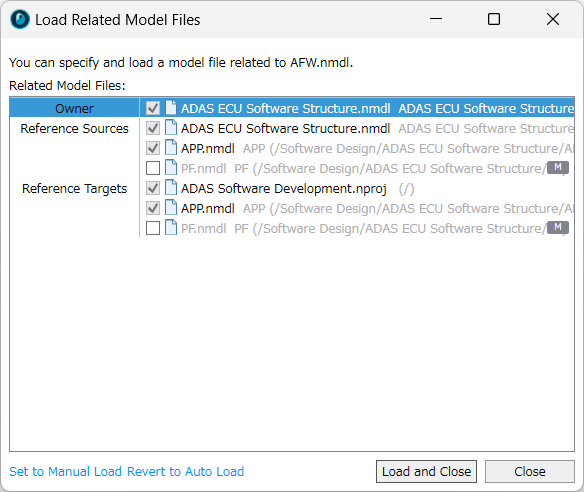
This loads an unloaded model file from the related model files.
-
Select the model that will be the starting point of the relationship in the editor.
-
From the ribbon, click [Team Collaboration] > [Load] > [Load a Specified Model File], and then click [Select from Related Models].
-
In the [Load Related Model Files] dialog box, check the model files you want to load from the related model files.
-
Click the [Load and Close] button to load the checked model files.
- Clicking [Set Manual Load] or [Set Auto Load] at the bottom of the [Load Related Model Files] dialog box allows you to change the loading settings for the selected model file in the dialog box.