Import Settings
This page explains the "Import Settings" function of ReqIFIntegration.
Overview
In ReqIF files generated through multiple requirements definition tools, the value of the "Identifier" attribute may be newly assigned each time it is exported.
In this case, even if you perform an update import, the existing model cannot be identified, and it will be treated as a new creation each time.
Using "Import Settings," you can specify an attribute other than "Identifier" (e.g., ReqIF.ForeignID, etc.) as a search key.
If the Identifier of the ReqIF file is always kept unique, you do not need to use this function.
Configurable Content
For update imports (re-importing into the same project), a key is required to identify the existing model.
By default, the "Identifier" attribute of the request object is used as the key.
In "Import Settings," you can change the attribute used as the key during update import for each request type (ReqIF type definition (SpecType)) contained in the ReqIF file.
| Terminology | Explanation |
|---|---|
| Request Type | This is the request type (ReqIF type definition (SpecType)) defined within the ReqIF file. Examples: Functional requests, non-functional requests, use cases, etc. |
| Attribute to Treat as ID | This is the attribute of that type that is used as the key to identify the existing model during update import. By default, "Identifier" is selected. |
Setup Procedure
Execute "Import Request Type Definitions" to ensure that you can execute "Import Requests."
Import settings are configured for the mapping information created in the project.
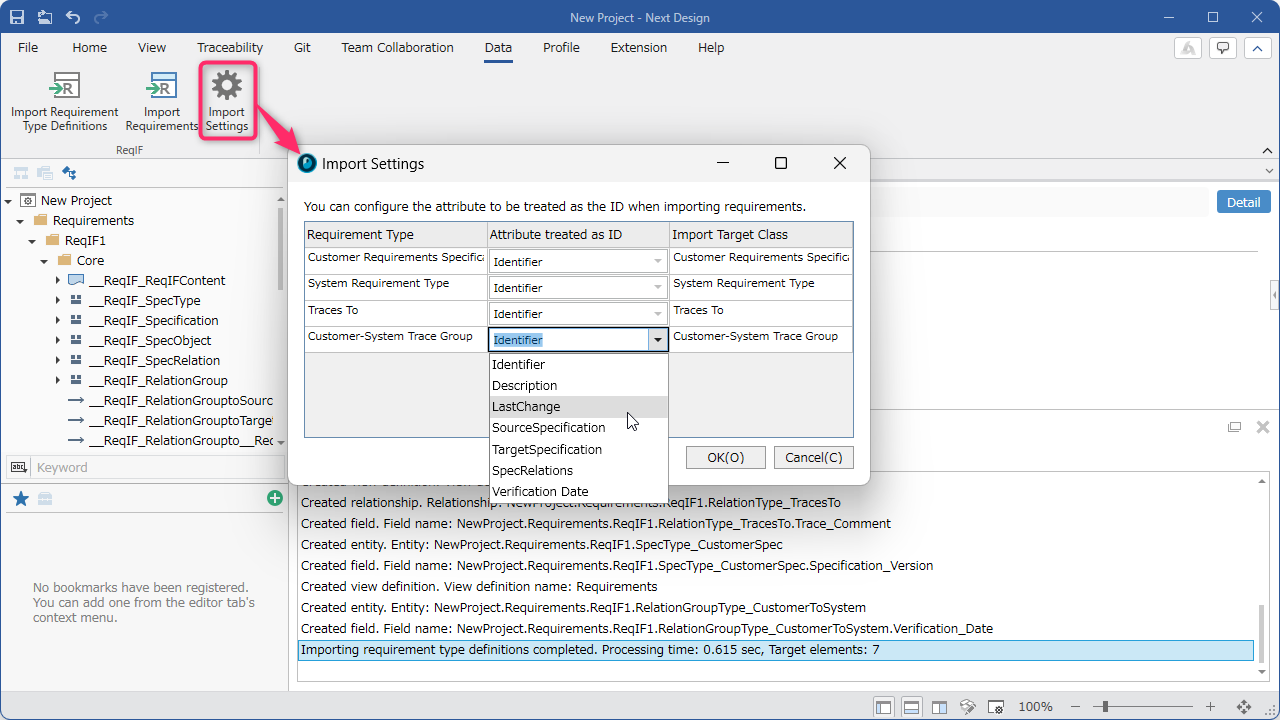
:::note: Instructions
-
From the ribbon, click [Data] > [ReqIF] > [Import Settings].
-
A list of request types and attributes will be displayed from the mapping information included in the project.
- If there are multiple mapping entries, the first one found will be displayed.
-
In the [Attribute to treat as ID] column, select the attribute to treat as the key from the drop-down list.
-
Click [OK] to apply the settings.
:::
:::caution:
-
Changing the key will change how existing models are identified in subsequent update imports.
-
If you change the key for a request that has already been imported, the existing model may not be identified, and it may be treated as a new import.
-
If the specified attribute is not set (empty) on the ReqIF side, that element may not be able to identify the existing model, and it may be treated as a new import.
-
Since keys are identified based on values in the existing model, if the attribute value used as the key is not included in Next Design (e.g., the field does not exist), the update import may not work as expected.
-
If mapping information is saved in tags, profile editing permission is required to save the settings.
:::