Quick Start
Overview
Installing the DFD package adds the following screen components, enabling DFD creation in Next Design:
-
[Profile] > [Components] > [DFD] is added to the ribbon.
-
You can add DFD models from the Model Navigator.
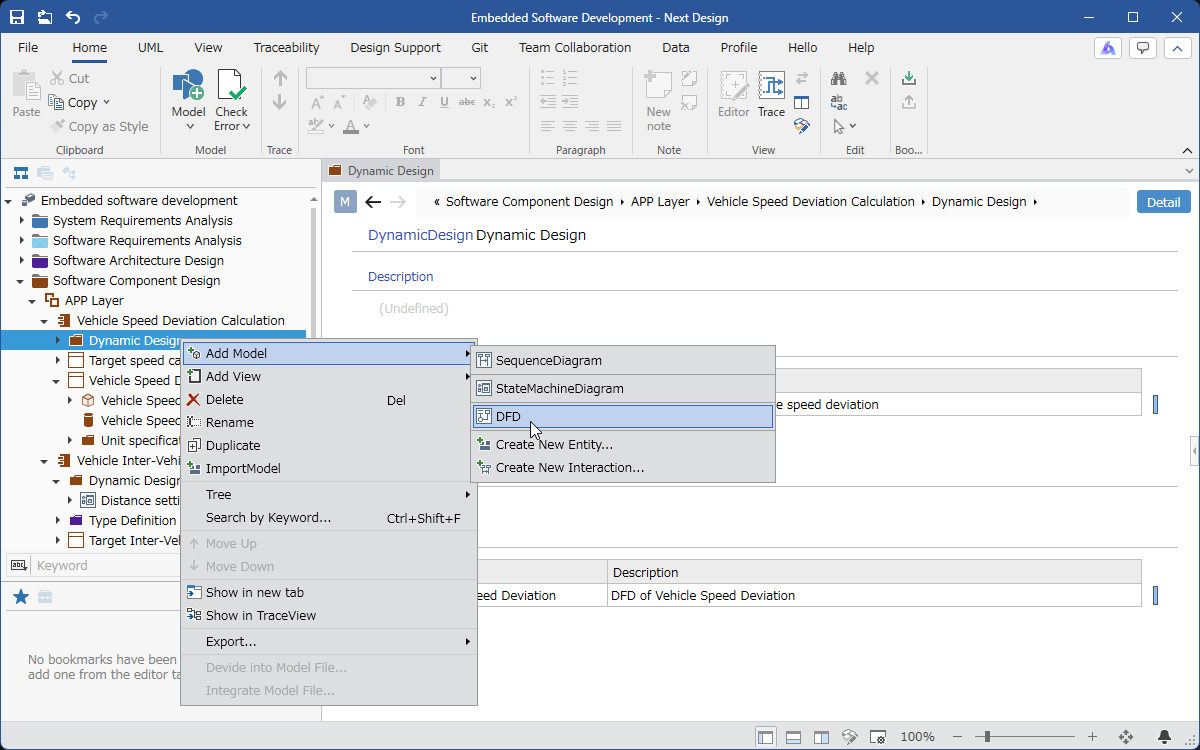
The following describes how to begin creating DFDs using the DFD package, in the following order:
- Install the DFD package
- Initialize the DFD profile
Installing the DFD Package
As preparation for creating DFDs, install the DFD package using the following steps.
- Install the [FMEA] package from [DENSO CREATE OFFICIAL] according to the following manual.
- After installation, restart Next Design to make the DFD package available.
Initial Setup of DFD Profiles
By applying the DFD profile to your current project using the following steps, you can create DFDs.
- Add a DFD metamodel
- Apply the added DFD metamodel to the project
Adding a DFD Metamodel
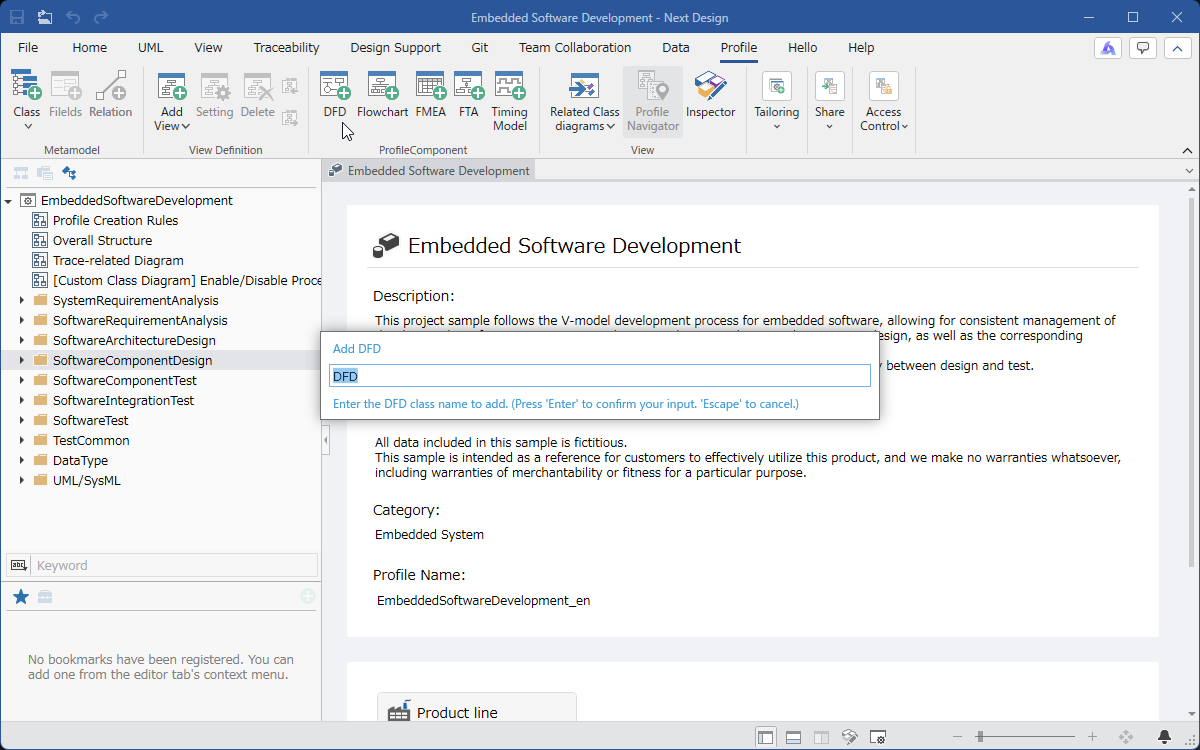
To add a DFD metamodel to your current project, follow these steps:
-
In the [Profile Navigator], select the package to add.
-
Click the [Profile] > [Parts] > [DFD] button on the ribbon.
-
The DFD metamodel will be added under the selected package.
- A DFD metamodel can be added to any package.
This allows you to add DFDs to multiple design models within a single project.
- Profiles added via [Profile] > [Parts] > [DFD] on the ribbon cannot be converted to reference format.
To add a DFD profile in reference format, use [Profile] > [Tailoring] > [Add Profile Reference] on the ribbon.
Applying the Added DFD Metamodel to the Project
By applying the added DFD metamodel to the project, you can write DFDs.
To apply it to the project, follow these steps:
- Define ownership relationships between the DFD metamodel and the entities creating the DFD
- Apply the DFD metamodel to the elements in the currently used project's metamodel that will be used for DFD notation
- Set the DFD metamodel as an abstract class
Define ownership relationships between the DFD metamodel and the entities creating the DFD
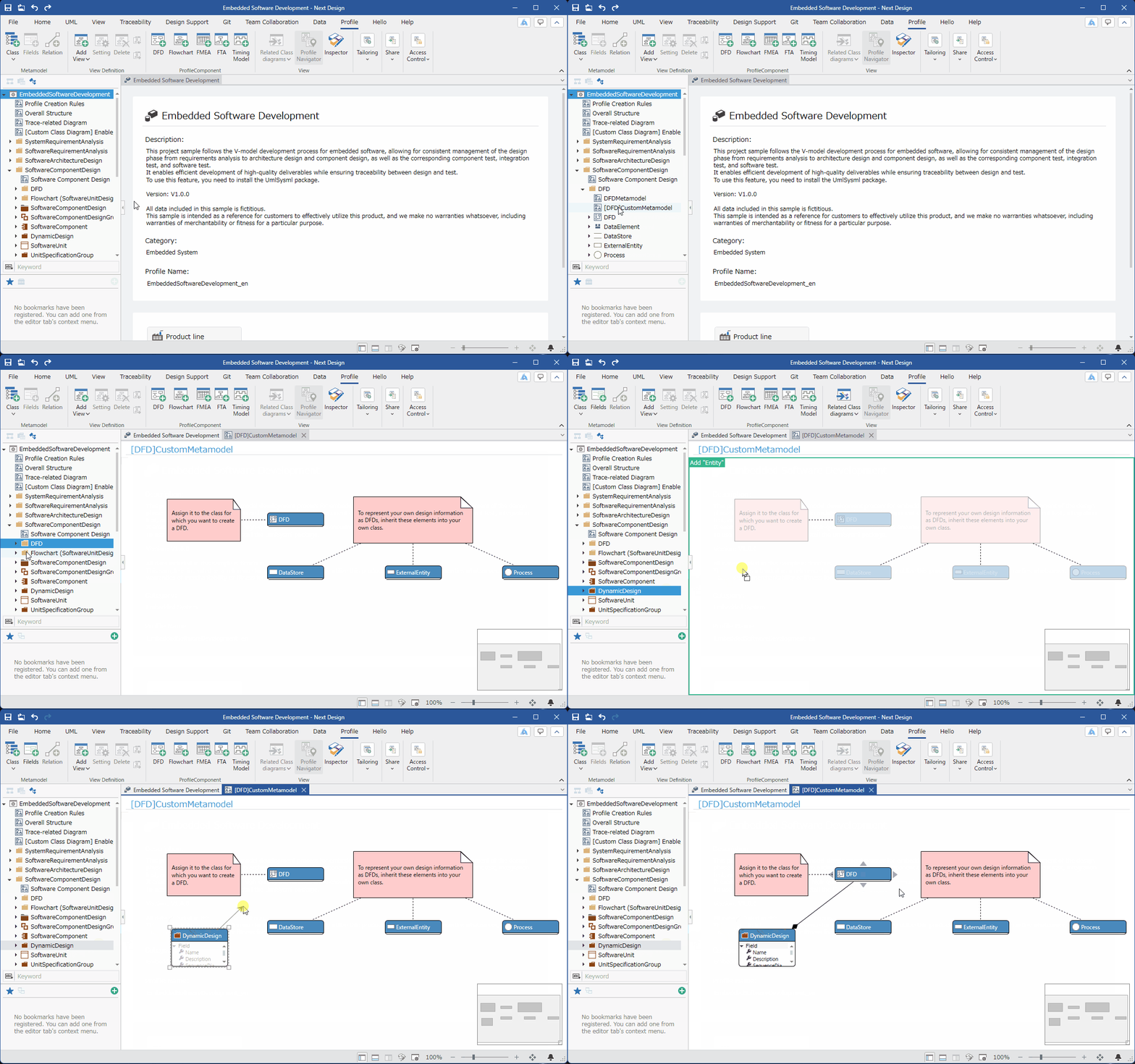
First, define ownership relationships between the entities in the DFD metamodel and the entities in the currently used project's metamodel that will create the DFD.
-
Display the class diagram of [[DFD] Custom Metamodel] in the added [DFD] package.
-
From the [Profile Navigator], drag and drop the entities where you want to place the DFD model to add them to the class diagram.
-
In the class diagram, move the pointer to the added entity, drag the [▲] icons that appear in the four directions, and drop them onto the [DFD] entity.
-
When you drop it, a pop-up window will appear with options for the type of association. Click and select [Embedded] from these options.
Applying the DFD Metamodel to Elements Used for DFD Notation in the Currently Used Project's Metamodel
You can display the metamodel of the currently used project on the DFD, rather than entities defined in the DFD metamodel itself.
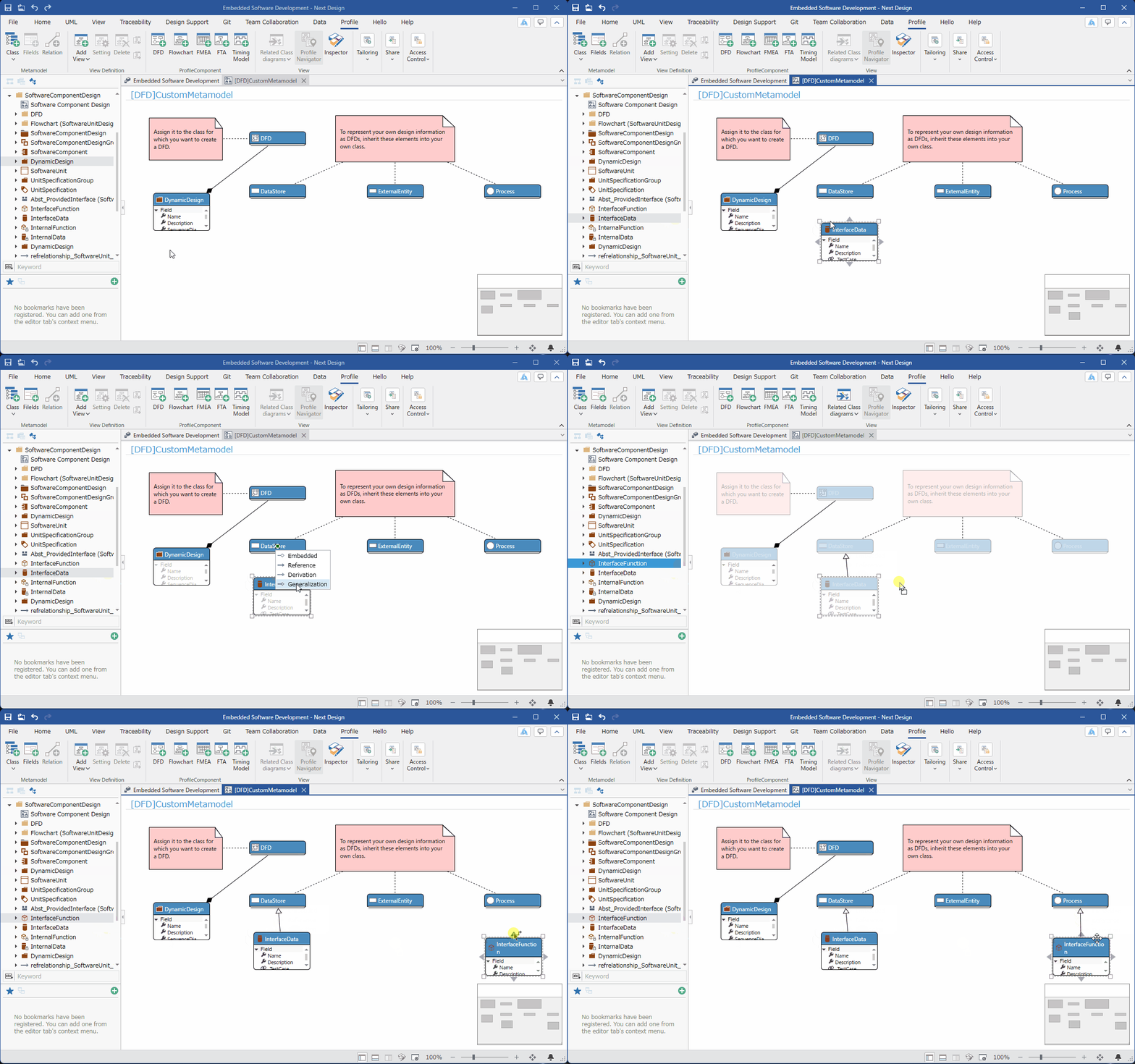
To display it, you need to define in the metamodel which element of the DFD notation the metamodel you want to display corresponds to.
-
From the [Profile Navigator], drag and drop the entities to be used for DFD notation to add them to the class diagram.
-
In the class diagram, move the pointer to the added entity, drag the [▲] icons that appear in the four directions, and drop them onto the corresponding DFD entity.
-
The DFD elements that can be mapped using this procedure are as follows:
-
Datastore
-
External Entity
-
Process
- When you drop it, a pop-up will appear with options for the relevant type. Click and select [Generalization] from among them.
If you use the DFD metamodel as is, each model you create will not be displayed in the Model Navigator.
To display them in the Model Navigator, follow these steps:
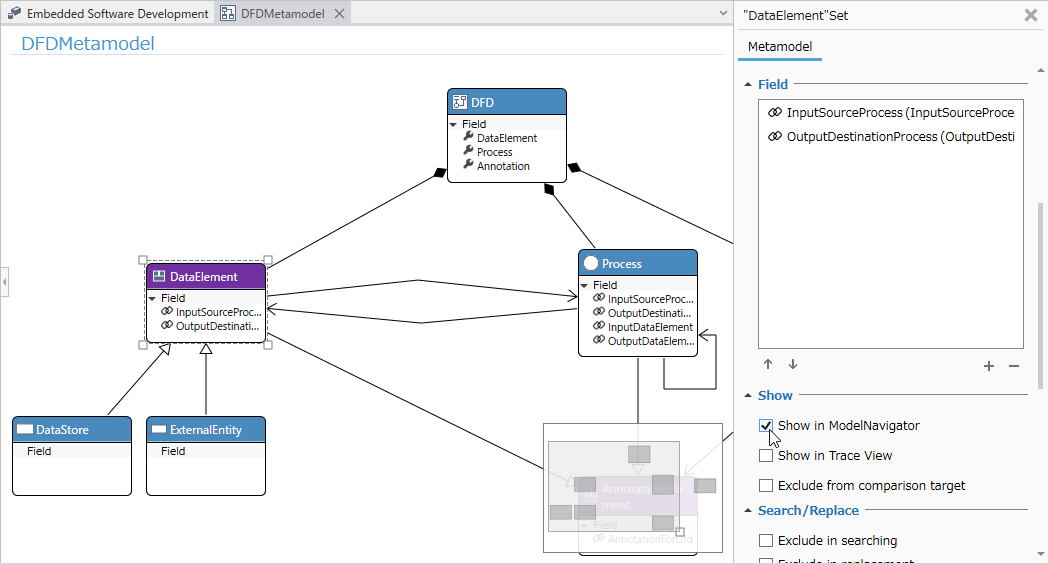
Procedure
- Display the class diagram of [DFDMetamodel] in the added [DFD] package.
- In the class diagram, for each DFD element you want to display in the Model Navigator, select the target entity in the table below, and check the checkbox for [Metamodel] > [View] > [Show in ModelNavigator] in the Property Inspector.
| Elements to display in the Model Navigator | Entities to select |
|---|---|
| Process | Process |
| Data Store | Data Element |
| ExternalEntity | Data Element |
| Annotation | Annotation |
Setting a DFD Metamodel to an Abstract Class
To prevent both the DFD metamodel entities and the project entities from being displayed when placing a new model, set the DFD metamodel entities to abstract classes.
To set a DFD metamodel entity to an abstract class, follow these steps:
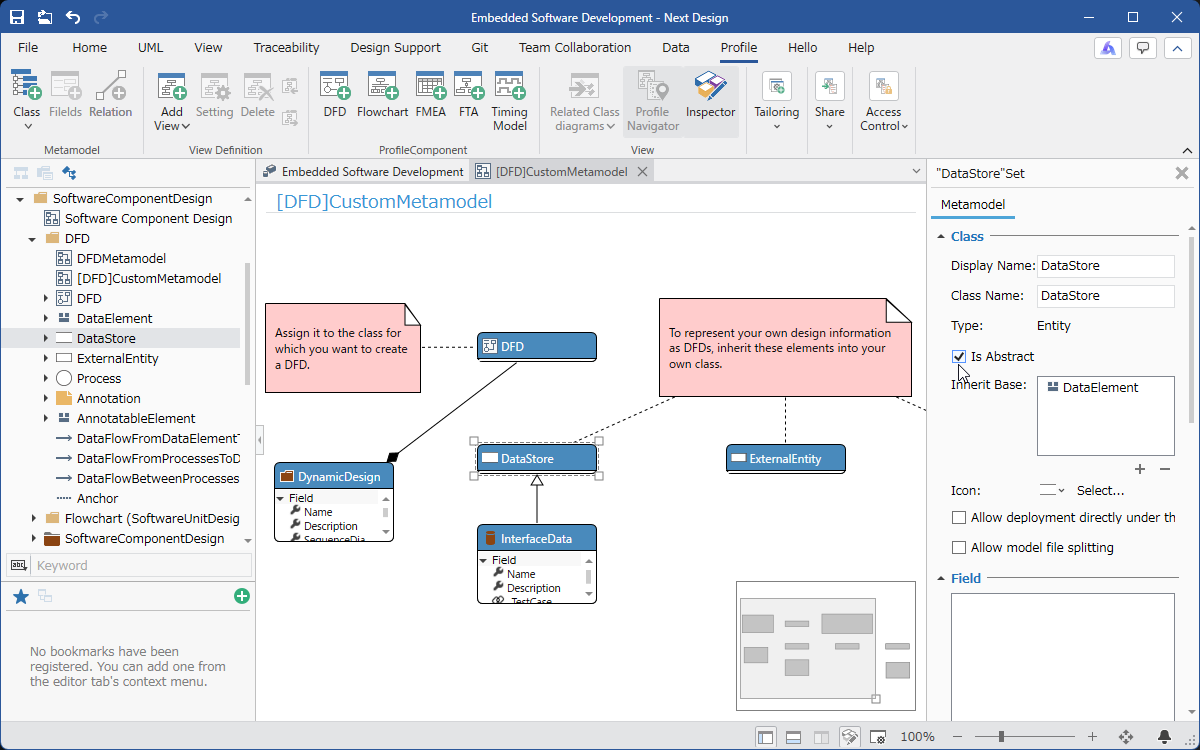
-
Select the DFD entity that defines the inheritance relationship.
-
Check the checkbox for [Metamodel] > [Class] > [Is Abstract] in the Property Inspector.