Quick Start
Overview
Once the USDM package is installed and the profile is ready, you can write specifications in USDM format on Next Design.
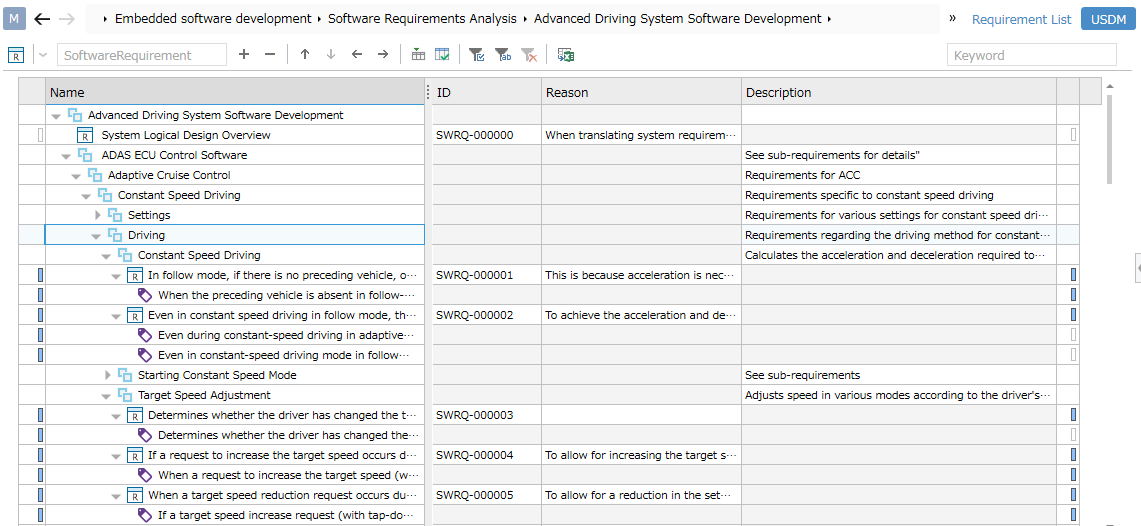
The following describes how to use the USDM package to write specifications in USDM format, in the following order:
- Install the USDM package
- Initialize the USDM profile
Installing the USDM package
To prepare for starting with USDM, install the USDM package using the following steps.
- Install the [USDM] package from [DENSO CREATE OFFICIAL] according to the following manual.
- After installation, restart Next Design to make the USDM package available.
Initial Setup of USDM Profile
By applying the USDM profile to your project using the following steps, you can enable USDM formatting.
- Add a USDM metamodel
- Apply the added USDM metamodel to the project
Adding a USDM Metamodel
To add a USDM metamodel to your current project, follow these steps:
-
Open the project you want to start using USDM in.
-
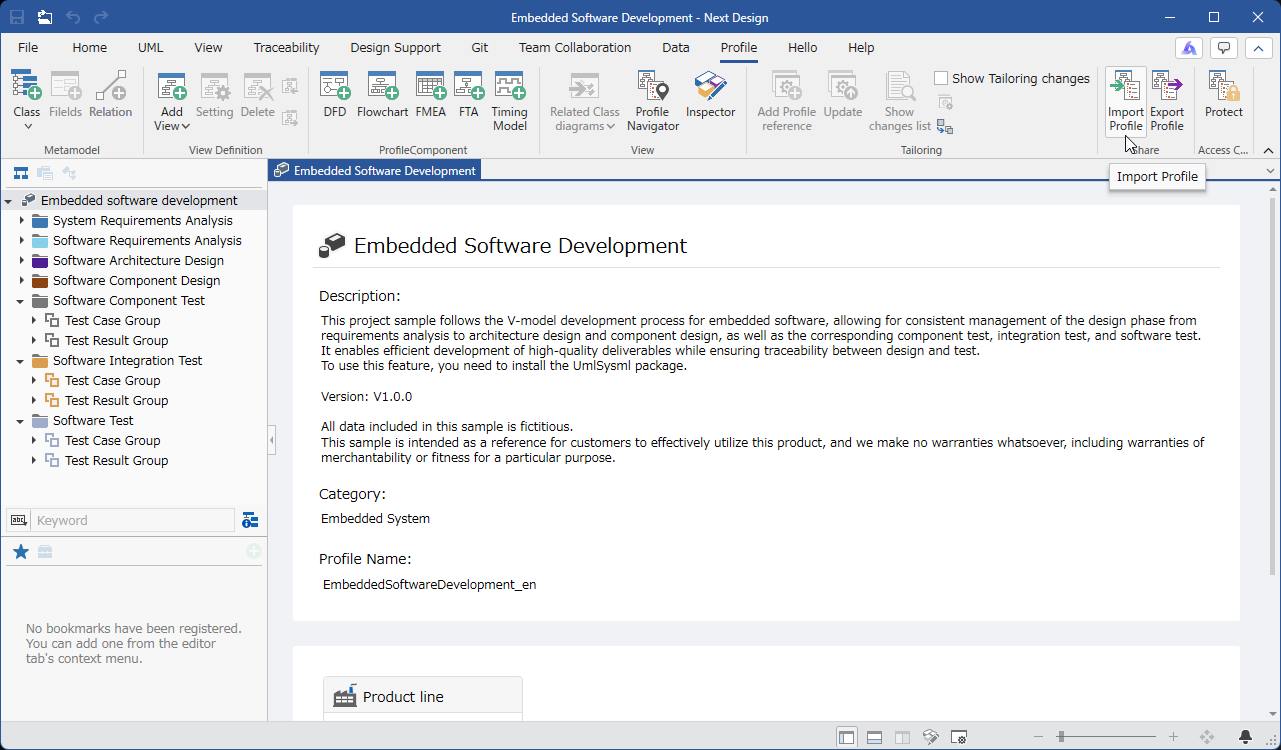
Execute [Profile] > [Share] > [Import Profile] on the ribbon. (※)
- The USDM profile is located in the following folder:
C:\Users\user-name\AppData\Local\DENSO CREATE\Next Design\installed-packages\USDM.X.X.X\profiles\Y.Y
X.X.X: USDM package version,Y.Y: NextDesign version
Applying the Added USDM Metamodel to the Project
By defining a relationship between the added USDM metamodel and the project's metamodel currently in use, and adding view definitions, you can describe the specifications in USDM format.
The metamodel changes are explained in the following order:
- Define an inheritance relationship between the requirements of your current project and the requirements of the USDM.
- Set the entities of the USDM requirements as abstract classes.
- Remove the ownership relationship of the entities of the requirements of your current project.
- Add a USDM view definition to the requirements of your current project.
Defining an inheritance relationship between the requirements of your current project and the requirements of the USDM.
First, define an inheritance relationship between the entities representing the requirements of the metamodel of your current project and the entities of the USDM requirements.
-
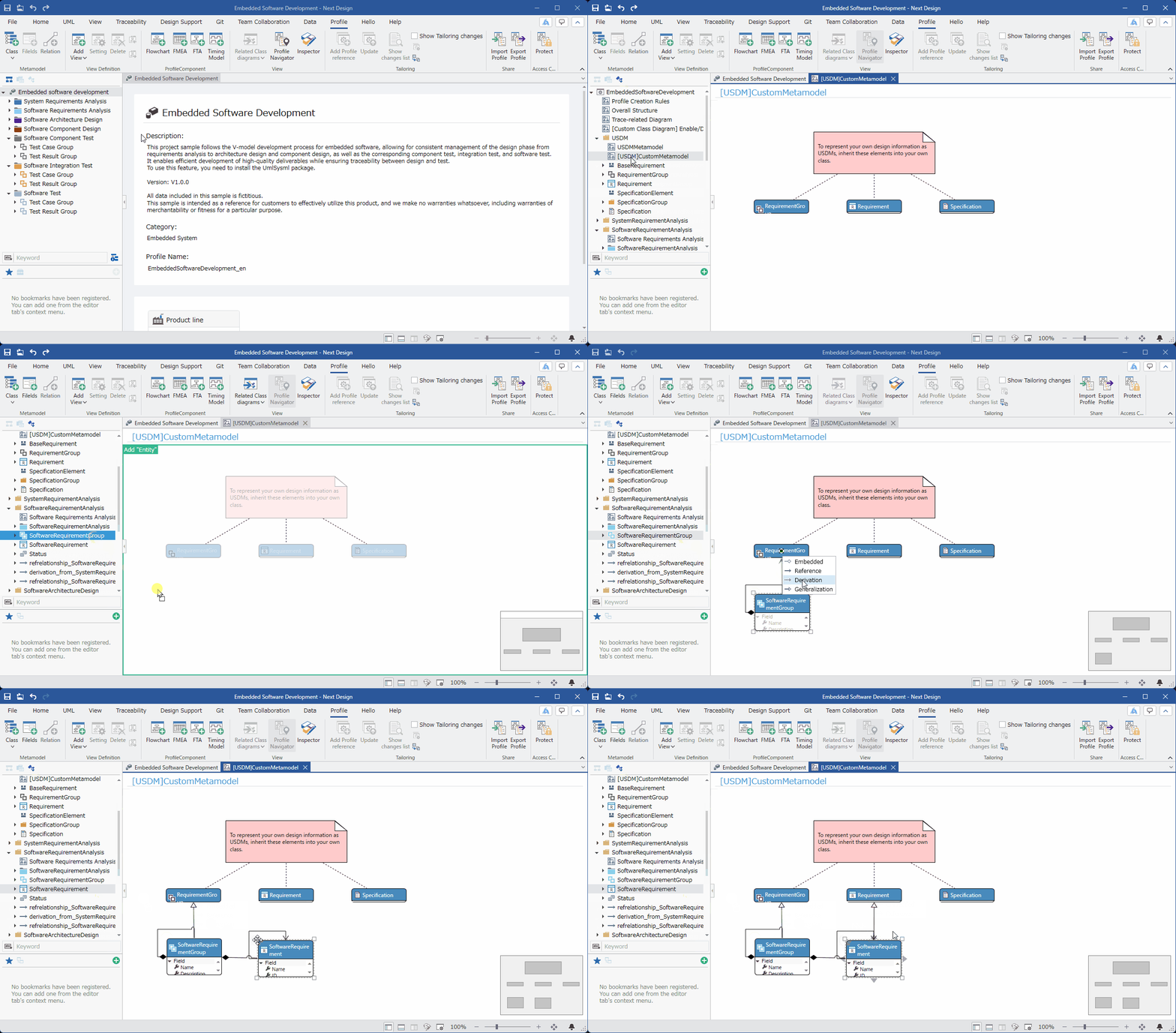
In the [Profile Navigator], display the class diagram of [[USDM] Custom Metamodel] in the [USDM] package.
-
From the [Profile Navigator], drag and drop the entities of the requirements group (*) of your current project to add them to the class diagram.
-
Move the pointer to the requirement group entity in your current project, drag the [▲] icon that appears in all four directions, and drop it onto the USDM [Requirement group] entity.
-
After dropping, a pop-up window with relationship type options will appear; click to select [Generalization].
-
Add the requirement entity in your current project to the class diagram using the same procedure, and define an inheritance relationship with the USDM [Requirement] entity.
- Entities that group and hierarchically organize multiple requirements are called requirement groups.
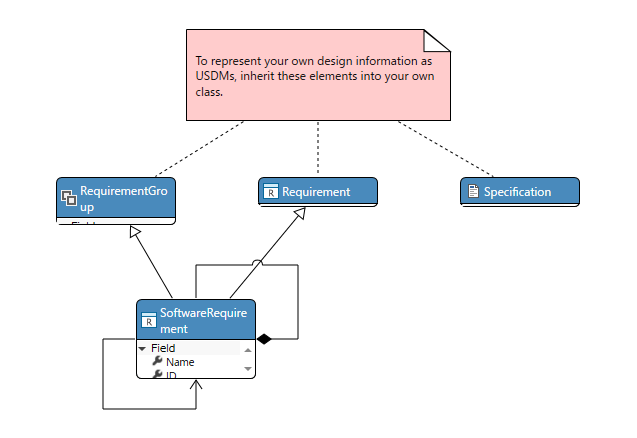
If there is no requirement group class, and the requirement and requirement group are defined with a self-ownership relationship of the same class, define an inheritance relationship between the requirement in your current project and the requirement group in USDM.
Setting USDM requirement entities to abstract classes
To prevent both USDM requirement entities and project-based requirement entities from being displayed when deploying a new model, set USDM requirement entities to abstract classes.
To set USDM requirement entities to abstract classes, follow these steps:
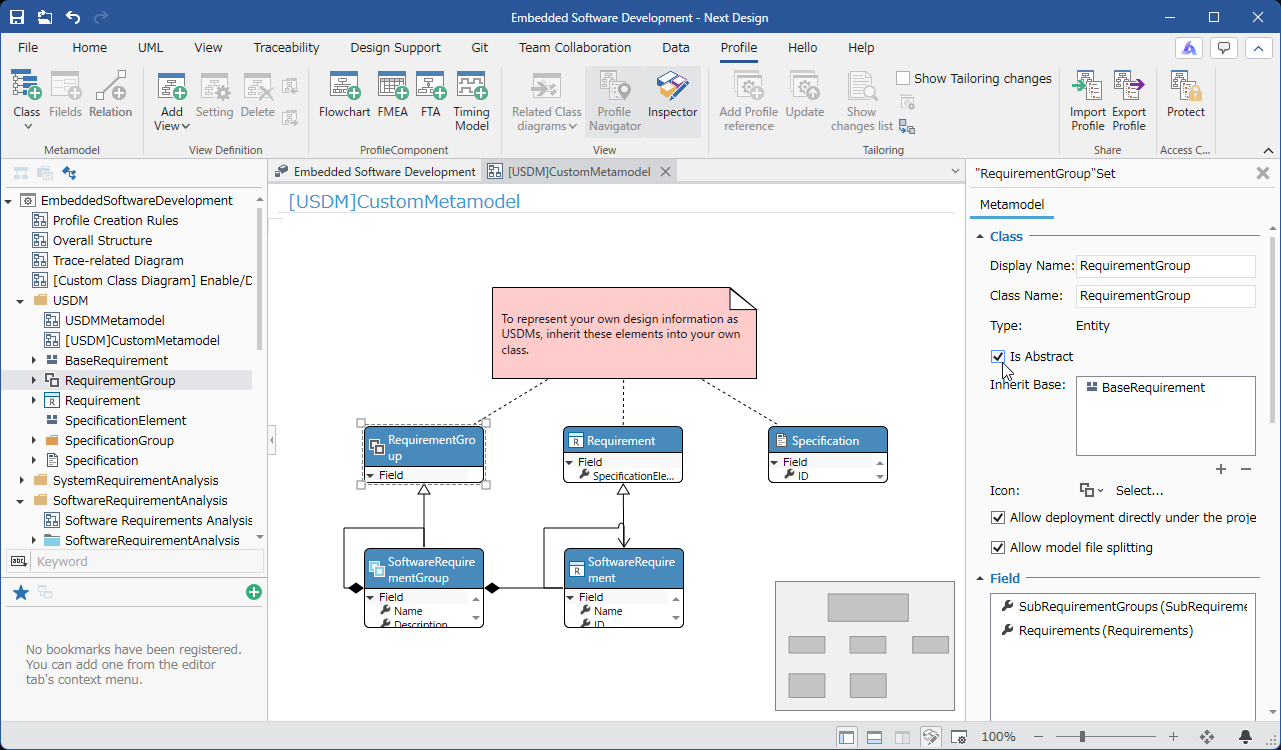
-
Select the entity in the USDM [Requirement group].
-
Check the checkbox for [Metamodel] > [Class] > [Is Abstract] in the Property Inspector.
-
Set the USDM [Requirement] entity to abstract classes in the same way.
Deleting Ownership Relationships for Entity Requirements in the Currently Used Project
Ownership relationships between requirement groups and requirements are defined in the USDM metamodel. Therefore, we will delete the ownership relationships from the metamodel of the currently used project.
To delete ownership relationships, follow these steps:
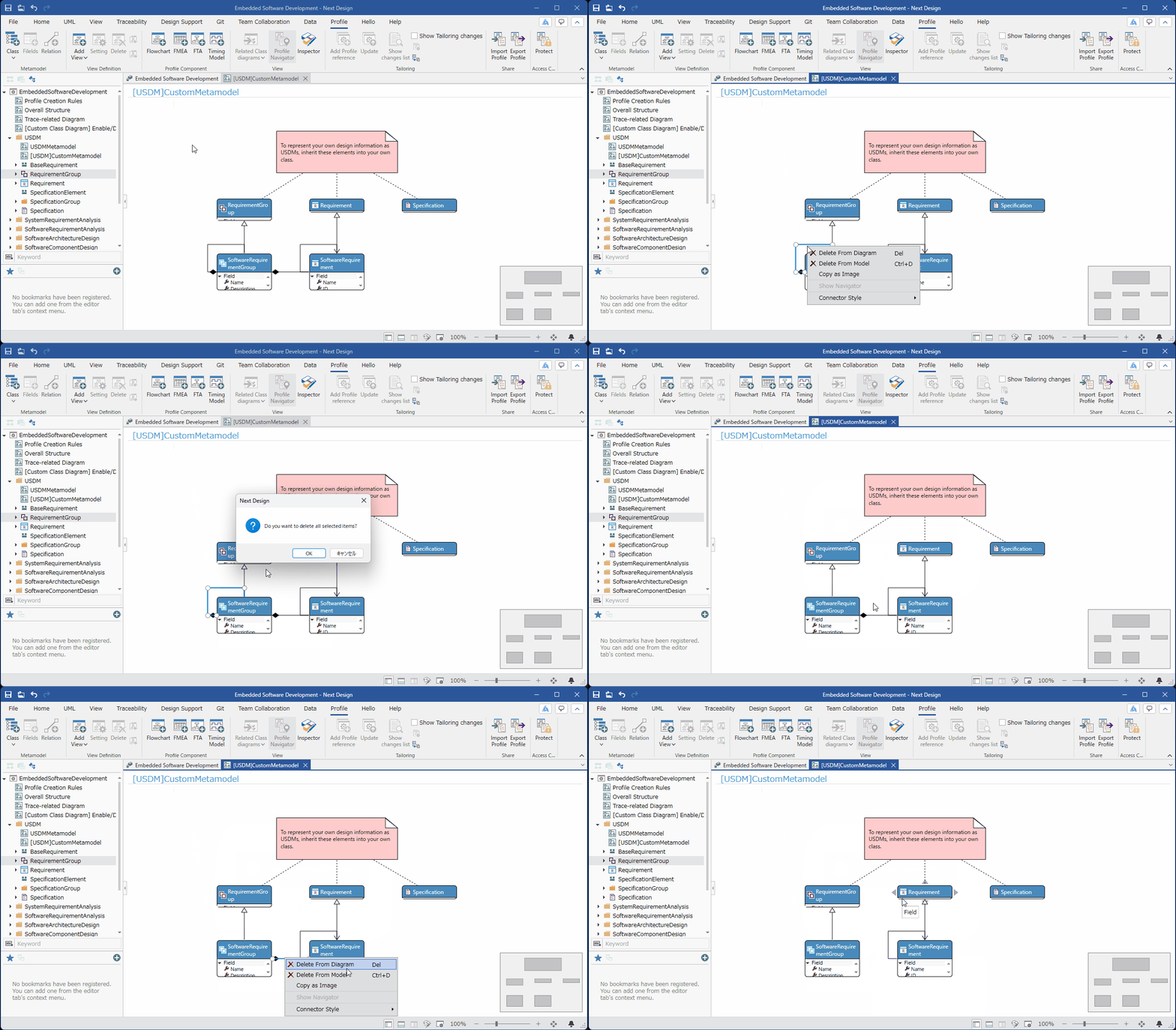
- Select the self-ownership relationship of the entity in the requirement group of the currently used project.
- Click [Delete From Model] in the context menu.
- Select the ownership relationship between the entity in the requirement group and the entity in the requirement of the currently used project.
- Click [Delete From Model] in the context menu.
Adding USDM View Definitions to Requirements in the Currently Used Project
To add view definitions to display in USDM format, follow these steps:
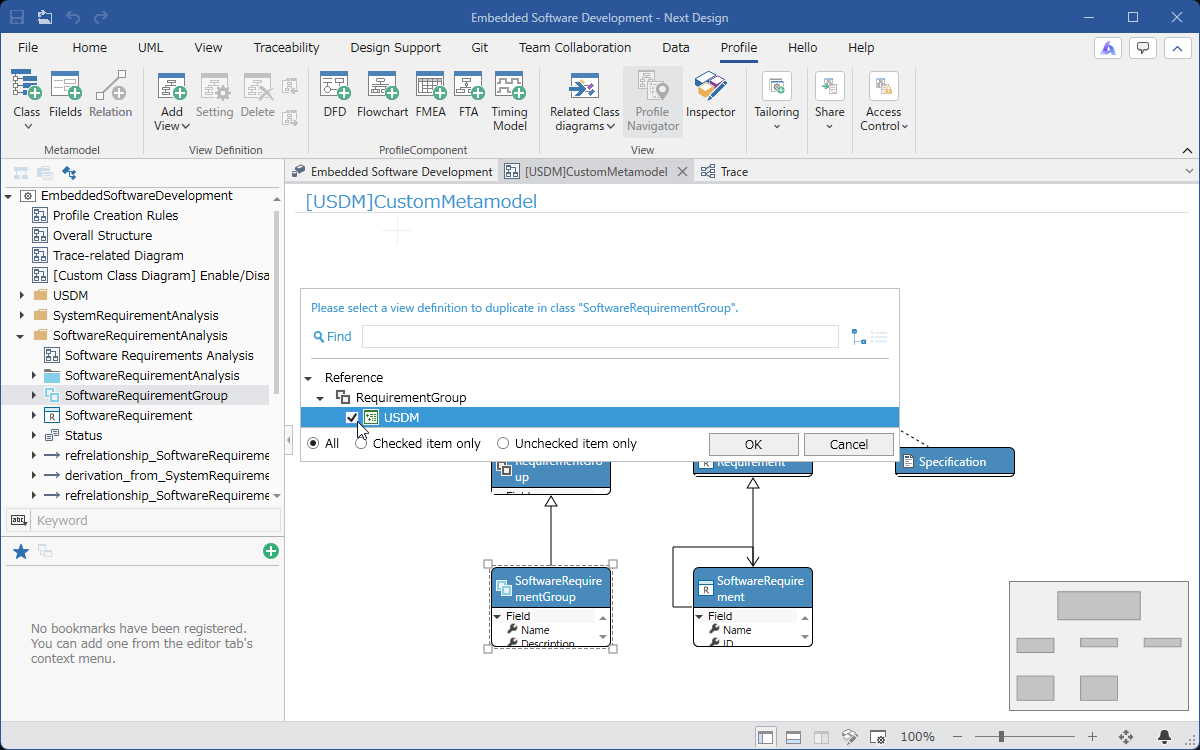
-
In the [Profile Navigator], select the entity of the request group in the project you are currently using, and click [Add] > [View Definition] > [Duplicate from inherited class] in the context menu.
-
Check the [USDM] checkbox and click the [OK] button.
If the request group does not have a class, and the request and request group are defined as self-owned relationships of the same class, please add the view definition to the request in the project you are currently using.
Depending on the metamodel and predefined models of the project you are currently using, the USDM profile may not be applied as intended using this procedure.
If you have any problems, please contact our support desk (ndsupport@denso-create.jp).