Getting Started
This section explains how to launch DC Agentiqs for the first time and begin using the Next Design AI Toolkit.
After launching the tool, configure the LLM.
Launching DC Agentiqs
To use the Next Design AI Toolkit, launch DC Agentiqs.
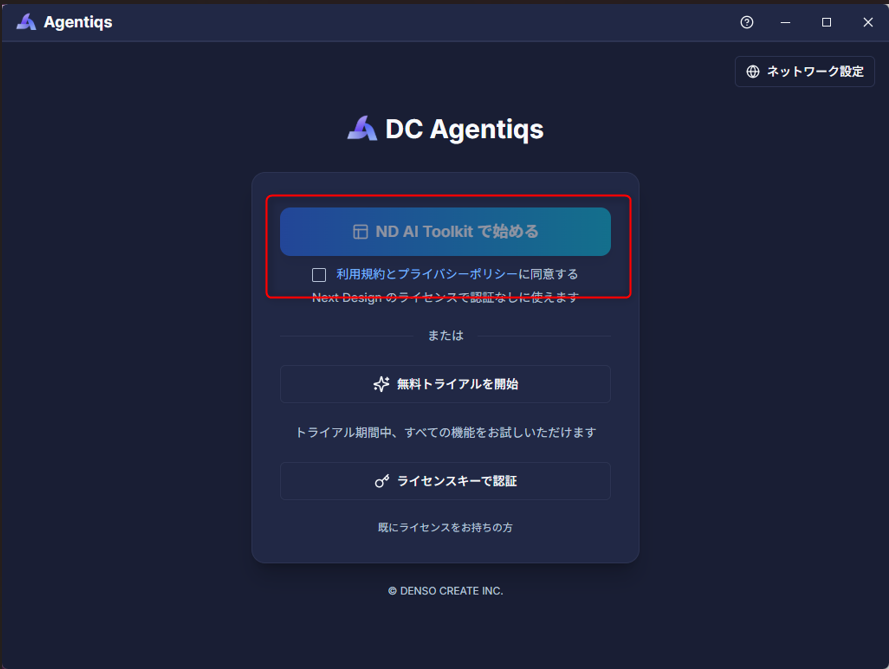
On the screen where you select how to use it, select [Start with ND AI Toolkit].
Next Design license.DC Agentiqs and MCP cannot be launched on PCs where Next Design license activation is not complete.
- Check [I agree to the Terms of Service and Privacy Policy].
- Click [Start with ND AI Toolkit].
The Next Design AI Toolkit will launch, and the agent screen will be displayed.
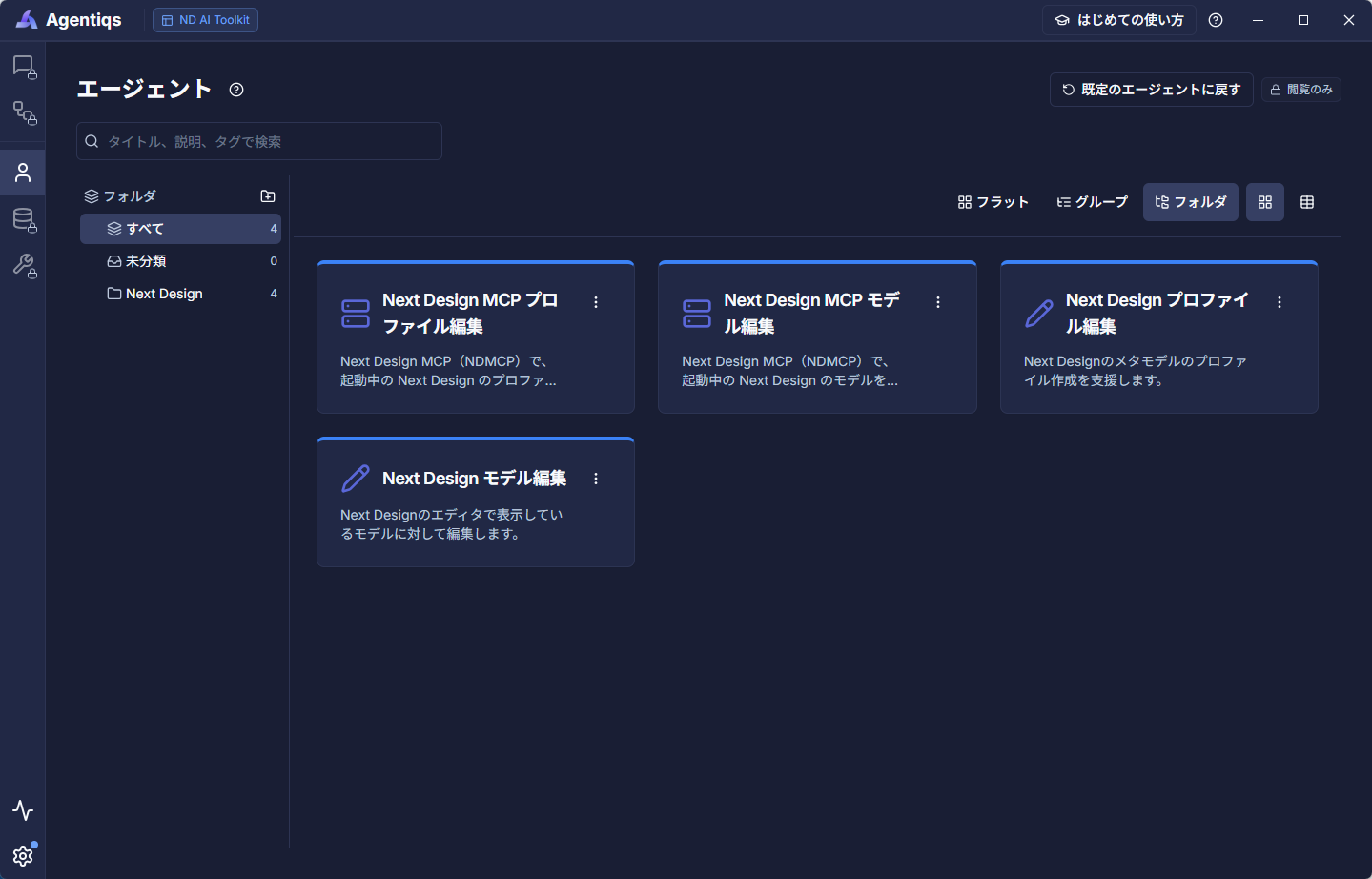
In the Next Design AI Toolkit, only the agents displayed on the screen can be used.
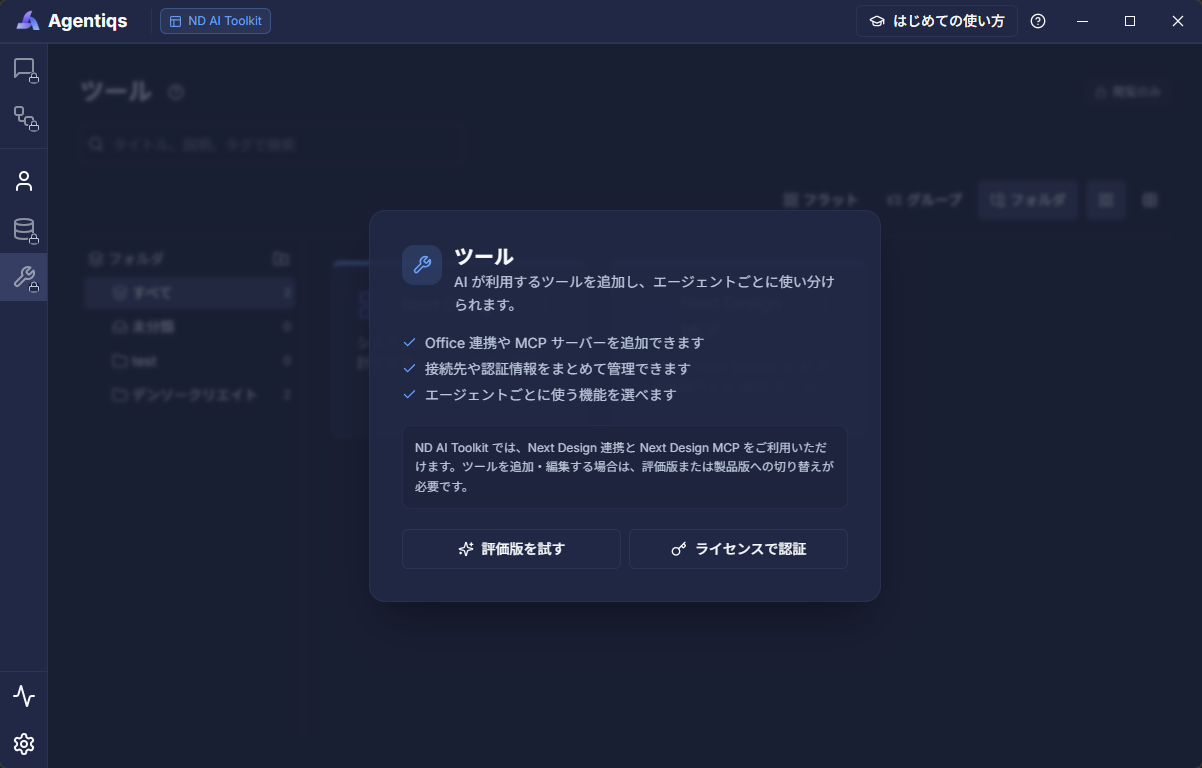
Adding agents or changing the settings of each agent is not possible.
The Next Design AI Toolkit provides the functions necessary for integration with Next Design.
Features not covered by the Next Design AI Toolkit, such as the chat screen and knowledge base of the DC Agentiqs app, are unavailable.
Setting up the AI Provider
Click the [Setting] icon in the lower left corner of the screen and select [AI Provider] to access the provider settings screen.
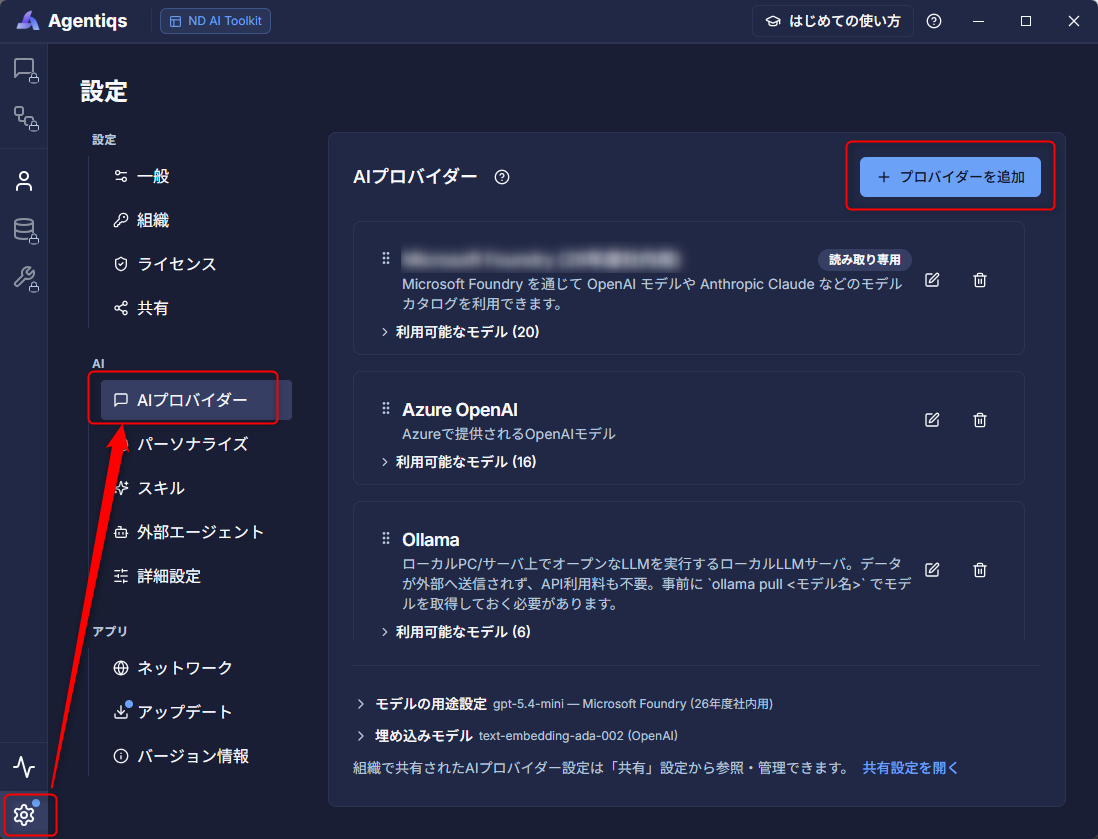
For detailed instructions, please refer to the following page in the DC Agentiqs manual.
- DC Agentiqs Administrator: Create and Distribute an AI Provider
- Non-DC Agentiqs Administrator: Configure an AI Provider
Initializing DC Agentiqs
Enter the following "Storage Location" path in the Explorer address bar and verify that the target files and folders exist.
| Target | Storage Location |
|---|---|
| Next Design MCP Executable File | %LOCALAPPDATA%\DENSO CREATE\Agentiqs\app\mcp\nextdesign-mcpFile Name: NextDesignMcp.exe |
| Agent Skills | %LOCALAPPDATA%\DENSO CREATE\Agentiqs\app\skills - Next Design MCP Operation Skill: nextdesign-mcp - Existing Design Asset Import Skill: nextdesign-document-import - Extension Development Skill: nextdesign-extension |
If you want to use AI to import existing design assets or develop extensions, please refer to the relevant Skills from the screen below.
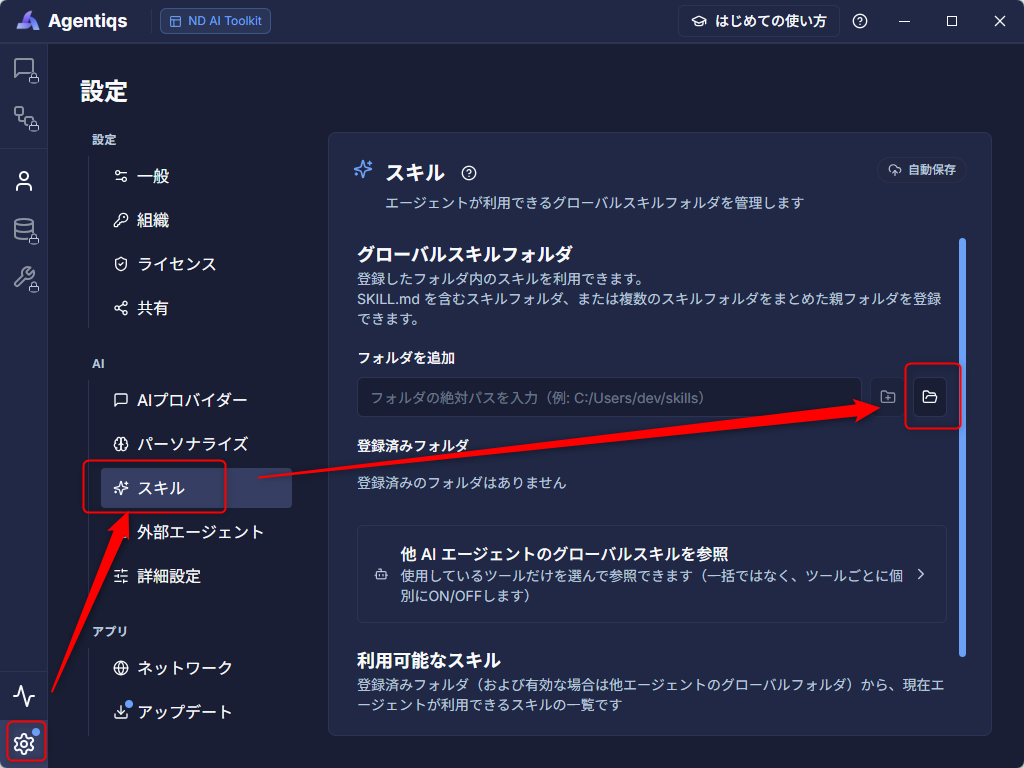
After configuring the above settings, launch the chat pane in Next Design and specify the agent mentioned above.
For details, please refer to "AI Support Using Agentiqs Pane".
Updating MCP and Skills
By upgrading the Next Design AI Toolkit, you can use the latest MCP and Skills.
For instructions, please refer to "Upgrade".
Using the DC Agentiqs Trial Version
DC Agentiqs has a "trial version" that allows you to use all features for free for 60 days.
The differences between the Next Design AI Toolkit and the trial version are as follows.
| Usage Pattern | Next Design AI Toolkit | Evaluation Version |
|---|---|---|
| Target | Those who want to use the Next Design AI Toolkit | Those who want to try all the features of DC Agentiqs |
| Available Features | Only the features necessary for integration with Next Design (Only the displayed agents can be used; Adding/modifying agents and knowledge are not available) | In addition to the AI toolkit, the following features are available - Agent Creation - Tool Integration - Knowledge - Workflow - Workspace |
| Cost & Duration | No DC Agentiqs purchase or license key required | Free for 60 days from the start of evaluation |
| Procedure | Launch DC Agentiqs | See "How to Start the Evaluation Version" below |
How to Start the Evaluation Version
You can use the evaluation version in the following ways:
- If using from the initial DC Agentiqs launch screen: Click [Start Free Trial] displayed on the screen.
- If switching after launching as the Next Design AI Toolkit: Click [Try the Evaluation Version] in [Setting] > [License].
To continue using the Next Design AI Toolkit, please start by following the steps in Getting Started with ND AI Toolkit.