AI-assisted development
The Next Design AI Toolkit allows you to operate Next Design from your usual AI agent.
It supports model and profile referencing and editing, importing existing design assets, and extension development.
What is the Next Design AI Toolkit?
The Next Design AI Toolkit consists of the following elements:
| Component | Role |
|---|---|
| Next Design MCP | Connects the AI agent to Next Design, allowing for project referencing, editing, and verification. *MCP (Model Context Protocol) is a standard for connecting generated AI (LLM) with external data sources and tools. |
| Agent Skills | Provides the AI agent with the knowledge and procedures necessary for operating Next Design, importing existing design assets, and developing extensions. |
This toolkit is provided bundled with the DC Agentiqs (*) installer.
- This is an AI agent platform sold by Denso Create. For details, please refer to "Product Site".
- After installing DC Agentiqs, MCP and Agent Skills will be stored in the designated folder.
- By upgrading DC Agentiqs, you can obtain the latest MCP and Agent Skills as a set.
The following customers can use this toolkit free of charge:
- Those who have purchased DC Agentiqs
- Those who have purchased Next Design (Purchase of DC Agentiqs and license key are not required)
DC AgentiqsIn addition to the Next Design AI toolkit, you can use convenient functions such as "AI Agent Creation" and "Workflow".
For details, please refer to "DC Agentiqs Product Homepage - Features".
By following the instructions for each AI agent, you can operate Next Design from the AI agent.
Setup
Prerequisites
- Click the "Download" button on the "DC Agentiqs Download Page" to download the installer.
After clicking the button, you will be prompted to enter your account and password.
-
For customers who have newly purchased Next Design, your account and password will be sent to you via email after purchase.
-
For customers who have already purchased Next Design, support will contact you.
If you do not receive the notification or if you do not know your authentication information, please contact Next Design Support (ndsupport@denso-create.jp).
- Please close any DENSO CREATE products such as Next Design and Lightning Review.
Installing Various Tools
First, please perform steps 1 and 2 below.
- Install 'NDInterop' (version 1.1.5 or later) following the instructions in "Installing Official Extensions".
- Install DC Agentiqs. Double-click the downloaded installer and follow the on-screen instructions to install. Notes:
- Install DC Agentiqs on the same PC where Next Design is installed.
- Agentiqs itself is installed on a per-user basis.
The installation location is
%LOCALAPPDATA%\DENSO CREATE\Agentiqs.
- Launch DC Agentiqs and select "[Start with ND AI Toolkit]" on the screen where you select how to use it.
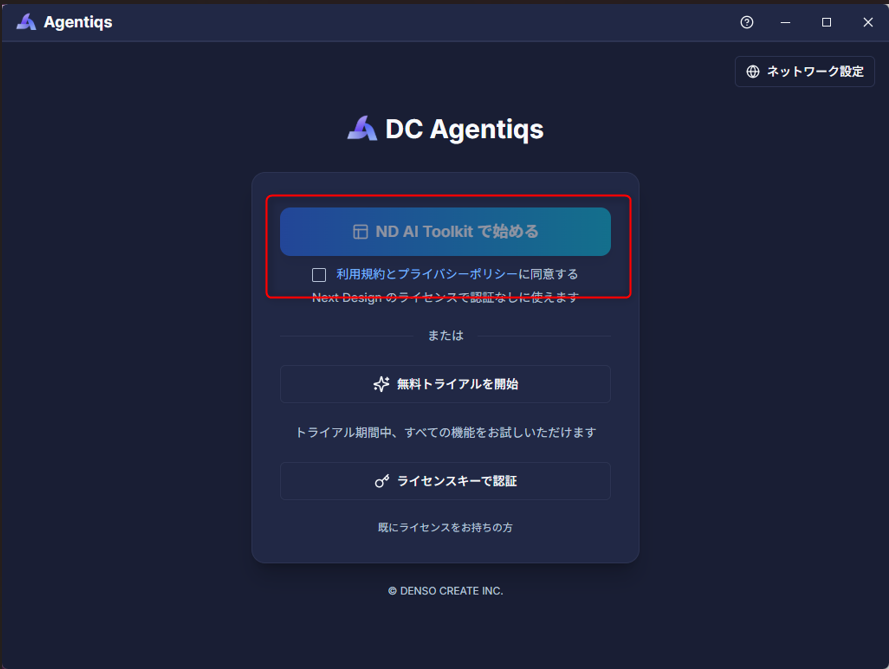
Afterward, follow the steps below depending on the AI agent you are using.
If using DC Agentiqs
Please configure DC Agentiqs following the instructions in "Start using the Next Design AI Toolkit".
By using DC Agentiqs, you can chat with the AI from the Next Design screen.
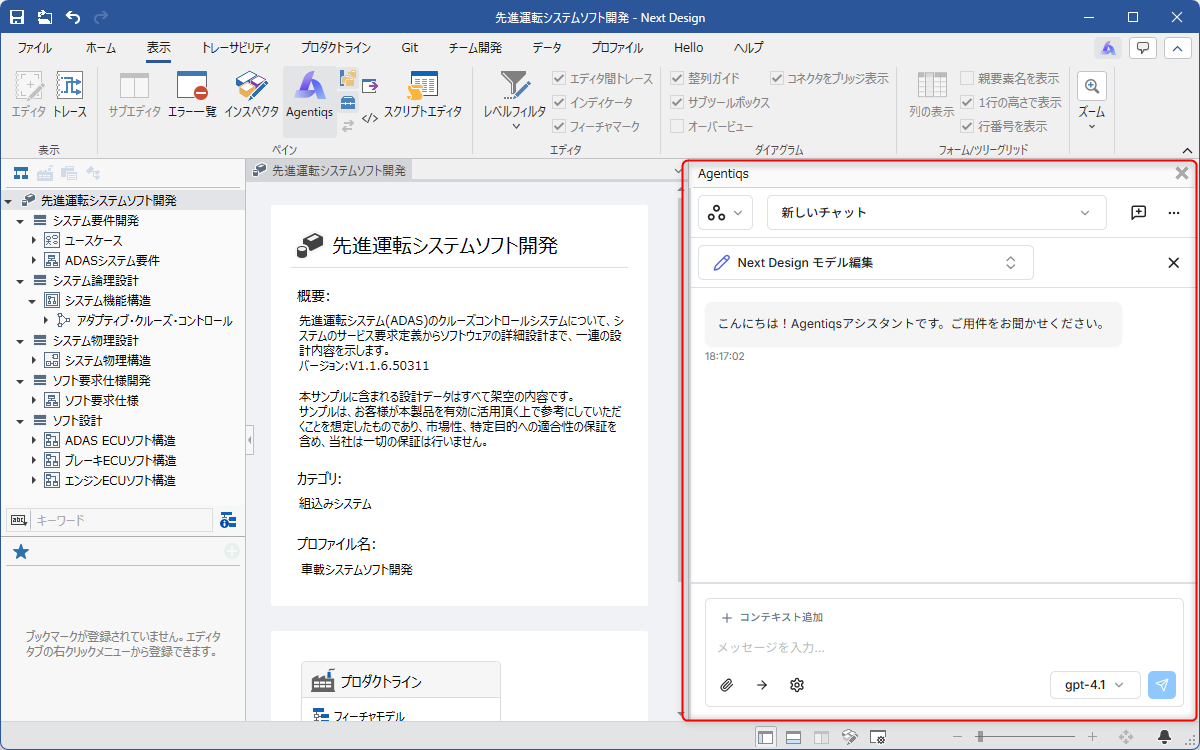
Using AI with DC Agentiqs requires separate configuration of an AI provider (such as an API key).
For a list of AI providers supported by DC Agentiqs, please refer to "Supported LLMs" in "DC Agentiqs Product Site - Operating Environment".
When using an AI agent other than DC Agentiqs
Terminate DC Agentiqs and use the MCP and Agent Skills located in the folder specified in "Preparation for AI Agent Use".
With this method, you cannot chat from the Agentiqs pane integrated into Next Design.
Usage Instructions
For instructions on using the following features included in the Next Design AI Toolkit, please refer to the following page.
- Basic Usage of Next Design MCP
- How to Import Existing Design Assets
- What You Can Do with Extension Development Support
For information on how to use this feature, please refer to "How To Content".