Profile protection
Overview
In Next Design, you can disable profile editing and protect profiles for each project to prevent unintentional changes to profiles while editing the project.
When a profile is protected, the following operations are disabled:
- Viewing and modifying metamodels
- Modifying view definitions
- Importing profiles
- The following operations for reusing profiles
- Adding profile references
- Updating profiles
- Viewing profile changes
- Viewing profile changes
- Managing profile references
- Converting profiles to reference format
- Replacing profiles
Protecting profiles
To protect a profile for the project you are editing, follow these steps:
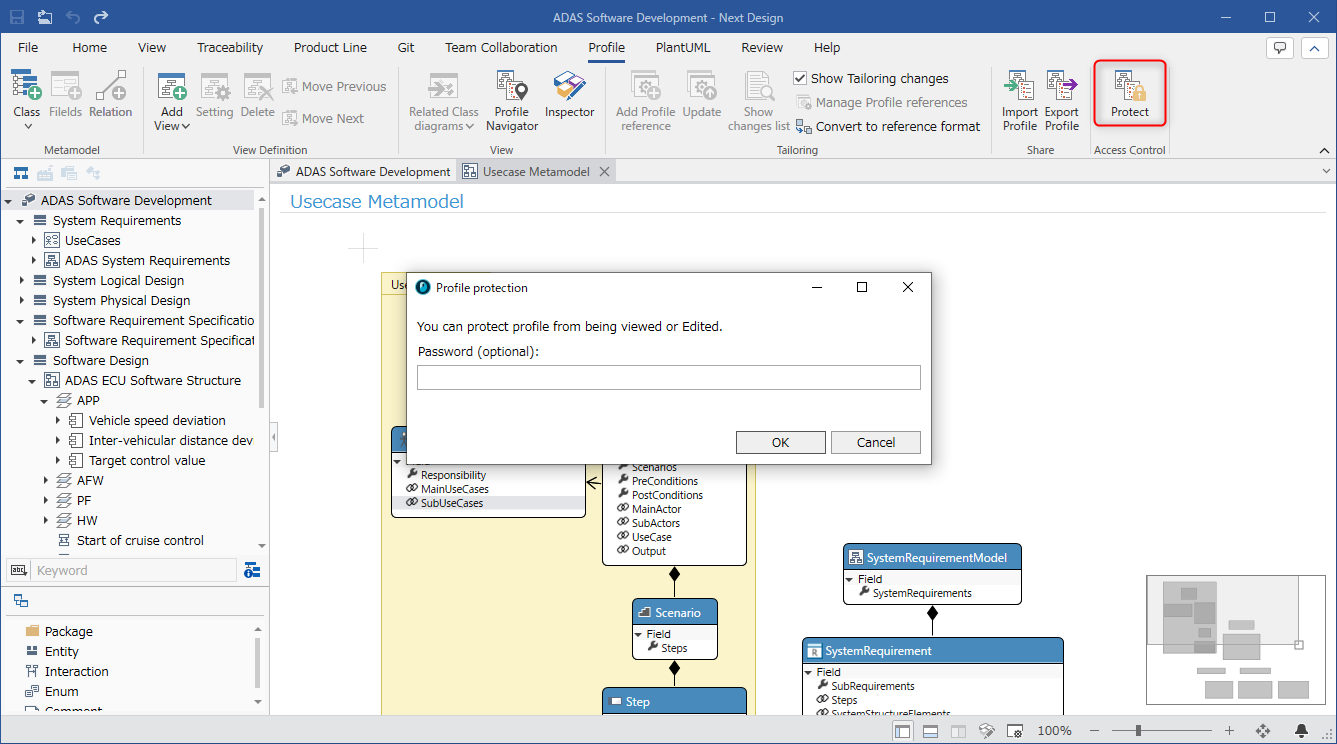
Operation procedure
- Click [Profile] > [Access Control] > [Protect] from the ribbon.
- In the [Profile protection] dialog, enter a password if necessary.
- Press the [OK] button to set profile protection.
- To remove profile protection, click [Profile] > [Access Control] > [Unprotect] from the ribbon and enter a password if necessary.
note
If you export with a protected profile, protection will also be set for the exported file. If you specify the exported profile with the following operation, the profile will be protected after the operation.
- Specify the profile in copy format when creating a new project
- Replace the profile