Importing Existing Assets with Skills
By using the Existing Design Asset Import skill, you can import existing documents such as Word, Excel, and PDF files as models in Next Design.
This page explains how to import existing design documents into Next Design by performing the import within the intended scope and reviewing and correcting the import results.
For information on setting up the AI agent and DC Agentiqs, please refer to here.
Overview
When importing existing design documents, the AI agent reads the document content and creates a model corresponding to that content according to the profile.
However, since the import results by the AI agent may not always be as expected, the user should proceed with the import in the following steps.
- Confirm the scope and prerequisites.
- Select the import destination and submit a request to the AI agent.
- Review the model in Next Design based on the report generated by the AI agent.
- Modify the import results as needed.
- After reviewing the results, save the project.
Note: The user must define the necessary profile for the import destination project beforehand.
Scope and Prerequisites
Before starting the import, please confirm the format of the target document and the content that can be imported.
Target Documents and Import Content
- Please use one of the following target document formats: Word (
.docx), Excel (.xlsx), or PDF (.pdf). - Please submit only one target file per request.
- Design information contained in headings, body text, tables, and lists will be imported.
- Design information contained in hidden sheets, rows, and columns in Excel will not be imported.
- Content of graphic drawings and design elements within diagrams will not be imported.
- Information such as figure numbers, chapter/section numbers, and figure titles will be recorded as sources in the model representing the figure or its nearest parent model.
After importing, please check the source information of the figures recorded in the model and adjust the figures as needed.
Since the model is created to match the existing metamodel, the import process will not add or modify classes or fields. Please define the necessary metamodels in the project profile beforehand.
The import process does not save the project. After checking and correcting the results, please save the project yourself.
Pre-Execution Checks
Before requesting an import, please check the following:
- Ensure that the metamodel corresponding to the document to be imported is defined.
- If importing into a project with split model files, ensure that all model files have been loaded.
- Ensure that the AI agent has read permissions for the target files.
- Ensure that the AI agent has write permissions for the output folder of the final confirmation report.
- Ensure that the AI agent has the
nextdesign-document-importandnextdesign-mcpskills available. - Ensure that automatic approval is enabled for the AI agent.
For Agentiqs
When using from the Agentiqs pane, configure as follows:
- Specify one of the following agents to use:
Next Design MCP Model EditingNext Design Existing Asset Migration Support Agent
-
Click [Approval Mode] and switch to [Automatic Approval].
-
Click [Working Folder] or [+ Add Folder] to add the folder containing the files to be imported.
This will allow the target files to be read and the final confirmation report to be written to the same folder.
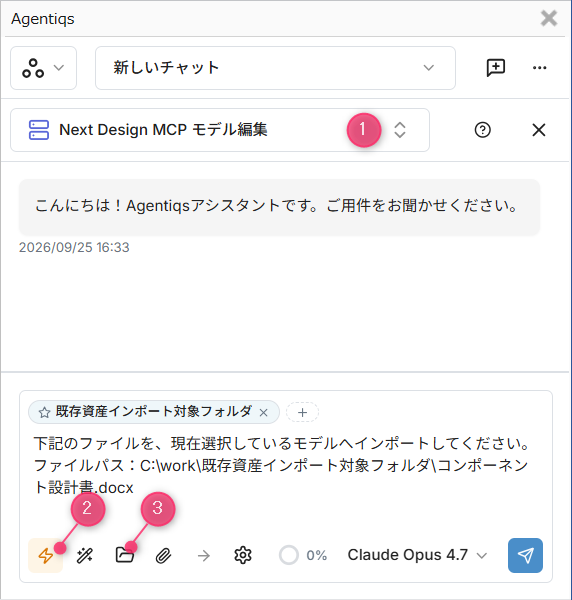
Basic Request Method
Select the target model in the Next Design Model Navigator and request the AI agent to import the files.
Example Instructions
Please import the following file into the currently selected model.
File Path: {Absolute path of the file to be imported}
-
Do not run this while the target file is open in another application. Close the target file before running it again.
-
Running this with multiple target models selected may result in the changes being reflected in unintended models. Select one target model and confirm that the document content matches the import destination's process and purpose.
-
Please specify the file path without attaching any files. Attaching files may result in information overload and prevent proper processing.
-
During the import process, the AI agent may request additional instructions regarding inquiries or confirmations. The frequency of this depends on the LLM (Learning Manager). More feature-rich LLMs tend to require fewer additional instructions. If many additional instructions are requested, please change the LLM and try again.
-
Even if the process appears to be interrupted due to tool call limits, etc., this does not necessarily mean the process has failed. The process may have already completed. Please check the status of the imported model and the final confirmation report. If the process has terminated midway, please request the continuation as follows:
Continue execution
How to proceed with large document volumes
If the document volume is large and processing in one go is difficult, divide it into units that maintain semantic coherence, such as chapters or functions, and import them in multiple batches.
Dividing it too finely may make it difficult to model while considering the overall context of the document, so divide it within a range that includes related content.
Note that the amount that can be processed in one batch varies depending on the LLM, document structure, and the amount of existing models, so the upper limit is not simply determined by the number of characters in the target document.
Check the final confirmation report
Once the model creation is complete, request the AI agent to output a final confirmation report. The final confirmation report allows you to check which models each element of the document was reflected in, or why it was not.
text Output the final confirmation report.
In the report, please focus on the following areas:
- Reflected (Problems Found)
- Not Reflected
The report is supplementary material for narrowing down the areas that need to be checked. Even if it is classified as "Reflected (No Problems)," it may not be as expected. Please examine the results carefully as needed.
Do not judge the import results as correct based solely on the report content; please check the model, field values, and relationships in Next Design.
If you want to identify models that have been added or changed by the import, in addition to the report, Next Design's model difference comparison function and the difference function with the previous commit are also useful.
The LLM may not have understood the necessary skills. Please specify the skills to be used and the output method as follows:
Please output the final confirmation report.
Be sure to refer to the "Final Confirmation Report Output" reference in the NextDesign Document Import skill and output in the specified format.
Correcting Import Results
Correcting Problem Areas
After reviewing the import results and identifying the problem areas, determine the appropriate correction method and make the necessary corrections.
When requesting corrections from the AI agent, clearly specify the scope and operation details, and confirm the model differences before and after the corrections.
If similar corrections need to be repeated, developing rule-based scripts can improve correction accuracy and reusability.
Formatting ER Diagrams
Existing asset imports prioritize the processing of the entire document, so ER diagram formatting is not performed.
If a model added during import has an ER diagram view, the shapes in that diagram will overlap.
To format ER diagrams, request the AI agent to format the ER diagrams after import.
``text` Please list the models that have ER diagrams among the currently selected model and its descendants.
```text`
Please format the layout of the ER diagrams in those models.
Note: For Agentiqs, please switch to an agent that enables ER diagram operations, such as "Next Design MCP Model Editing."
The "Existing Asset Migration Support Agent" prioritizes processing the entire document and suppresses ER diagram operations, therefore it cannot format the layout.
Precautions
-
Import results will vary depending on the document content, metamodel, existing model, and LLM used.
-
The final confirmation report may contain missing elements, errors in confirmation results, and deficiencies in the output format.
-
The user is responsible for making final judgments on correctness and necessary corrections.
Confirmation Checklist
Before executing the import and determining completion, please check the following items:
- Confirmation of import results based on the final confirmation report
- Confirmation of models, field values, and relationships in Next Design
- Confirmation of ER diagram layout