Using AI Features
This section explains how to display and use the DC Agentiqs chat window on Next Design.
This chat window is called the Agentiqs Pane.
- Display the Agentiqs Pane
- Add a Context
- Reload the Agentiqs Pane
Operations such as switching workspaces, agents, and knowledge, and entering chat messages are the same as in DC Agentiqs.
Operations on the Agentiqs Pane are limited to the project displaying the Agentiqs Pane.
Displaying the Agentiqs Pane
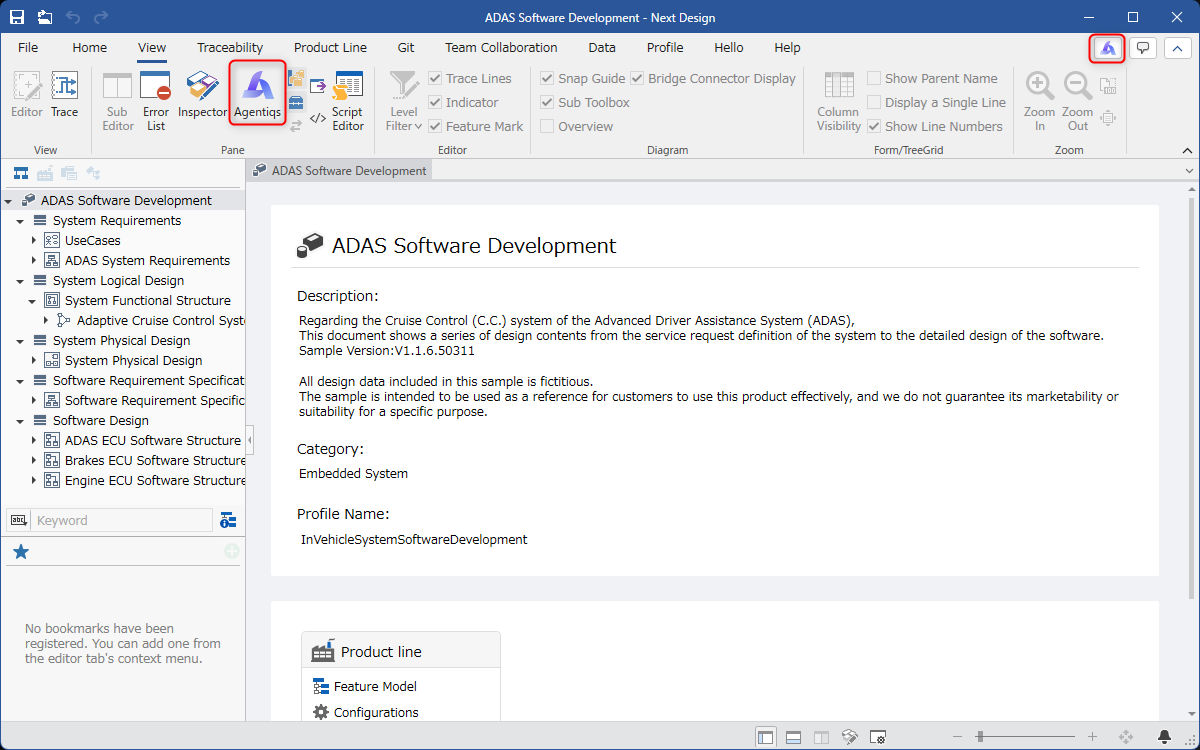
After installing DC Agentiqs, an icon will be added as shown in the following screen.
Click the icon to display the Agentiqs Pane.
Adding a Context
There are several ways to add a context to the Agentiqs pane:
- Adding with a Button
- Adding with Drag and Drop
Adding with a Button
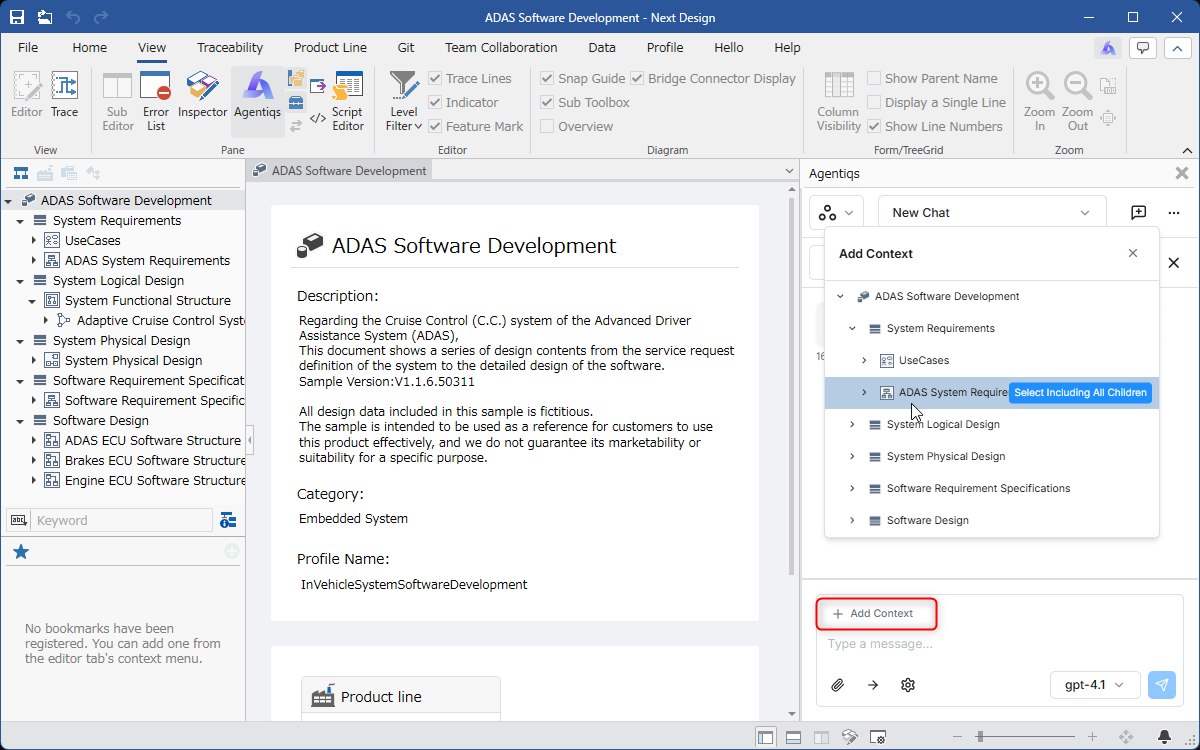
You can add a context by clicking the [Add Context] button in the Agentiqs pane.
:::note: Procedure
-
Click the [Add Context] button in the Agentiqs pane.
-
Click the model you want to add from the model tree.
- Clicking the [Select Including Children] button will add the selected model and its children.
:::
Adding with Drag and Drop
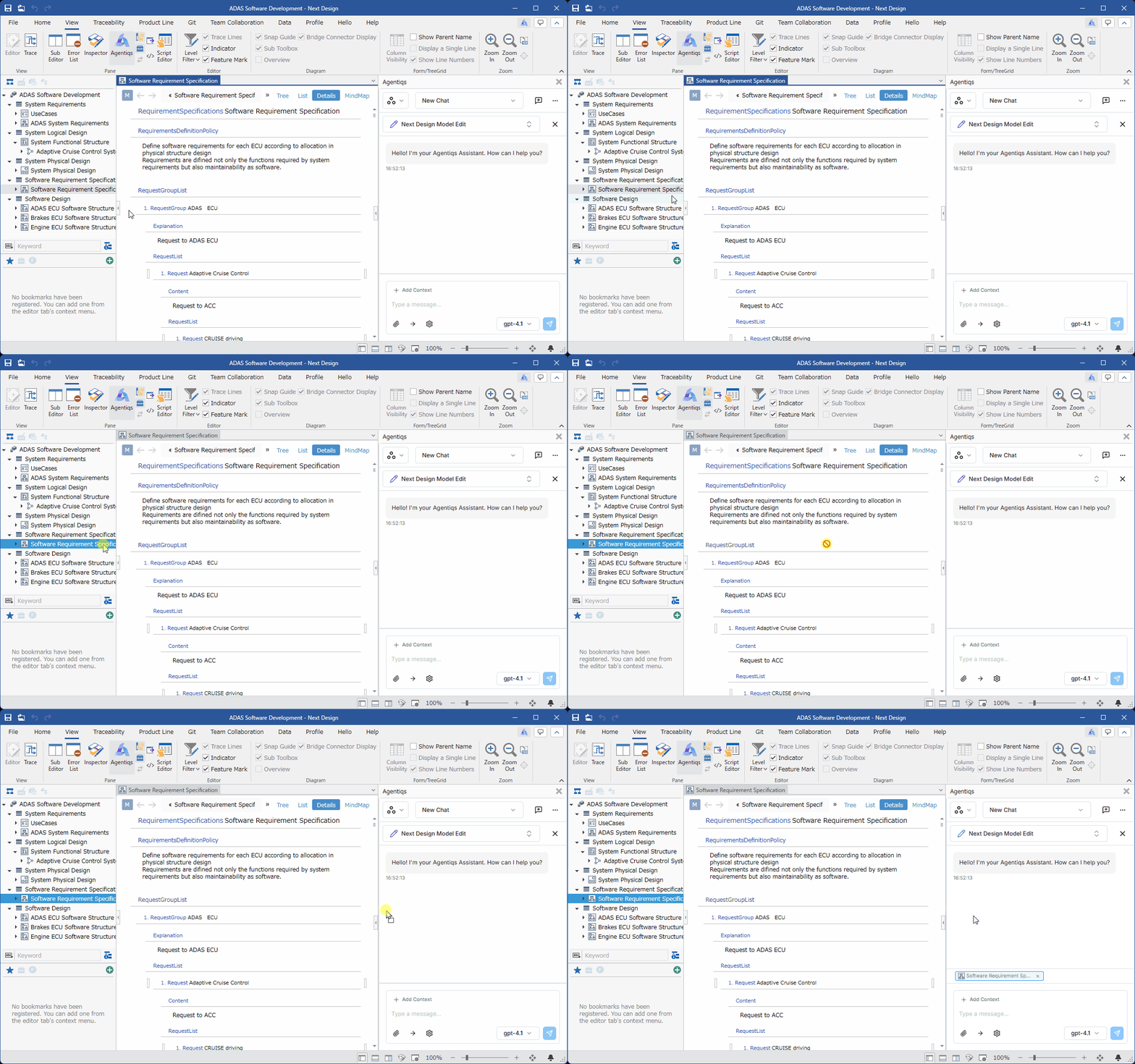
You can add a context by selecting an element from the navigator or editor and dragging and dropping it into the Agentiqs pane.
To add elements including their children, hold down the [Ctrl] key while dropping.
The following elements can be added:
| Drag Source | Element |
|---|---|
| Model Navigator | Model |
| Package | |
| Profile Navigator | Class Diagram |
| Package | |
| Metamodel | |
| Fields | |
| View Definition | |
| Product line navigator | Feature Model |
| Feature | |
| Configuration | |
| Product | |
| Editor | Model in Form Editor |
| Model in Tree Grid | |
| Trace | Model in Trace Tree |
| Other | External Image |
| External File |
Reloading the Agentiqs Pane
To reload the Agentiqs pane, follow these steps:
Reloading the page will reflect the changes made to the DC Agentiqs settings in the Agentiqs pane while the Next Design is still displayed.
:::note: Instructions
-
Focus on the Agentiqs pane.
-
Reload the Agentiqs pane using one of the following methods:
-
Hide and then show the Agentiqs pane again.
-
Press the shortcut key [F5].
-
Press the shortcut key [Ctrl + R].
:::