D6. Execute Tests
Based on the test cases created in the test design phase, you can do the following:
- Define the test execution plan and scope
- Record and summarize test results for each test case
Below, we will explain the test plan, the screen image during execution, the model to be edited, and the views and extension functions used for each use case.
| ユースケース | 画面イメージ | モデルとビュー | 説明 |
|---|---|---|---|
| D6.1. Plan Tests | |||
| └ D6.1.1. Plan Targets and Units for Each Test | 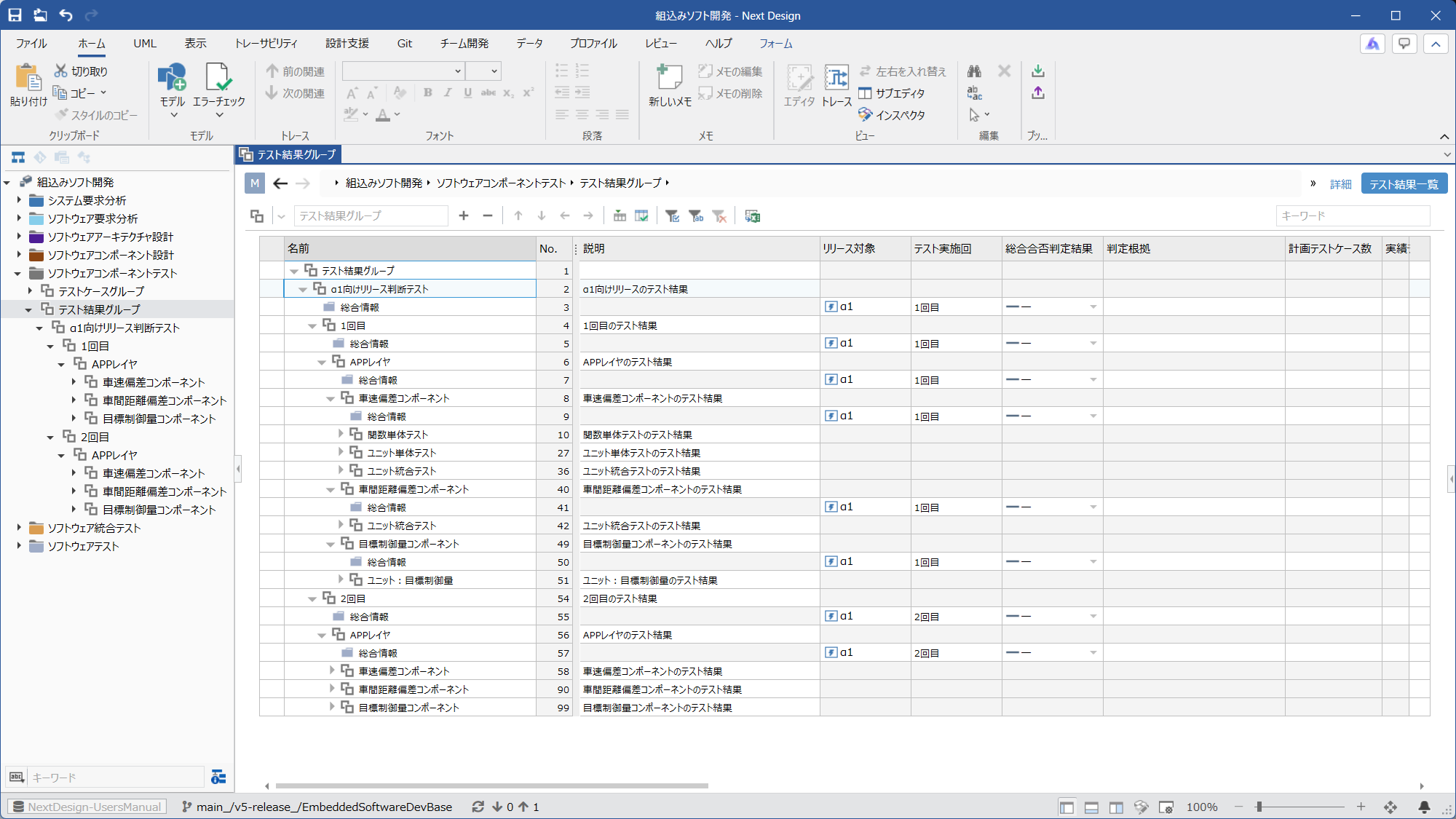 | Ⓜ Main Editor • Model: [TestResultGroup] • View: [TestResult List] Ⓢ Sub Editor • None | By structuring the [TestResultGroup] hierarchically, you can plan the scope of testing (e.g., all functions, only function A) and the units of testing (per release, per function, etc.). This also clarifies the scope of testing for each run, even when testing is conducted in multiple runs. |
| └ D6.1.2. Defining the Test Scope | 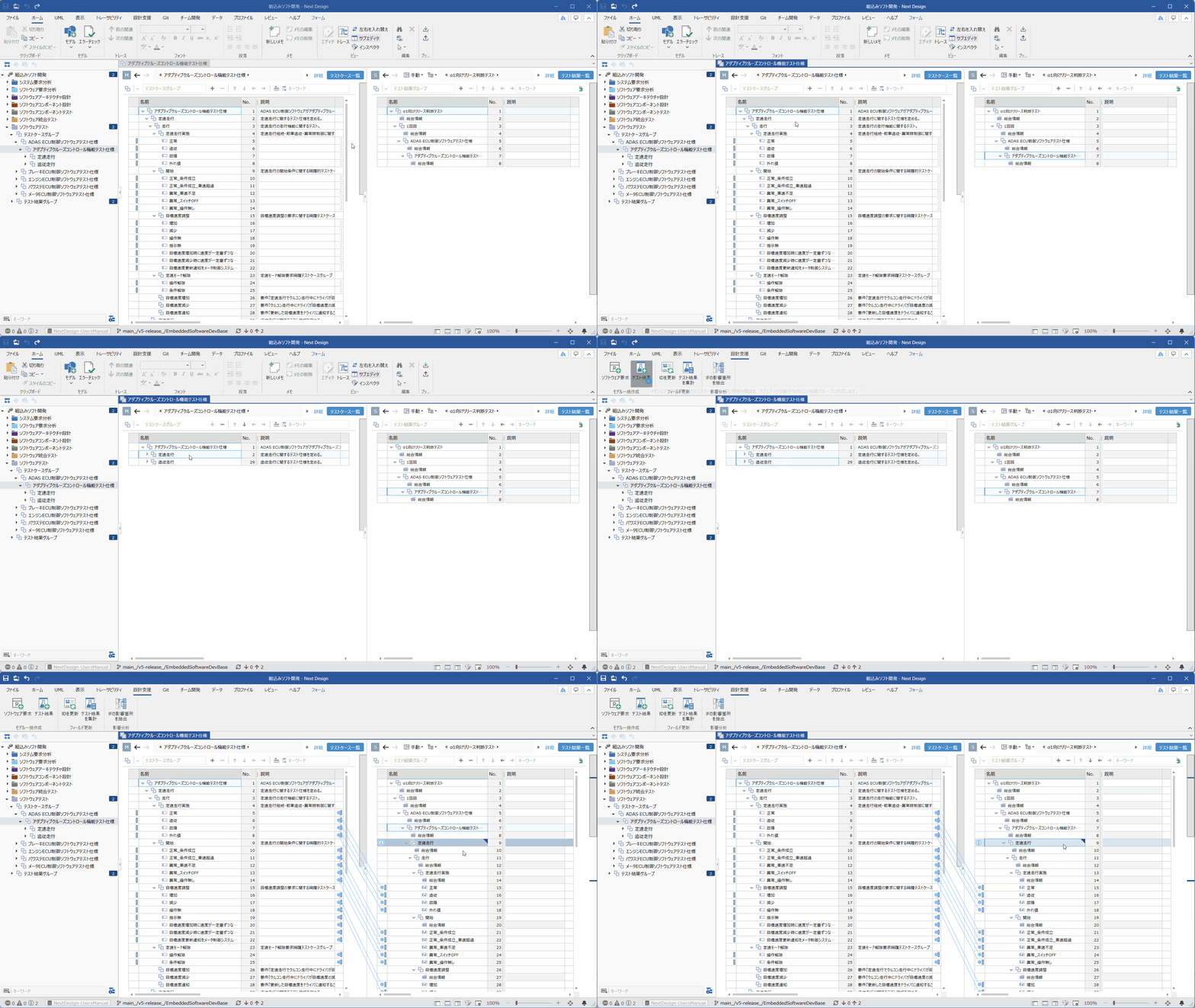 | Ⓜ Main Editor • Model: [TestCaseGroup] • View: [TestCase List] Ⓢ Sub Editor • Display Mode: [Manual] • Model: [TestResultGroup] • View: [TestResult List] | By deriving an empty [TestResult] from [Test case] in a two-screen configuration, you can define the test scope (target test cases) for each [TestResultGroup]. Select [TestCaseGroup] in the main editor, then select the [TestResultGroup] to be derived from in the sub-editor. After that, press the [Design Support] > [Batch Model Creation] > [TestResult] button on the ribbon tab. The extension function will then allow you to batch derive empty [TestResult]s. You can clarify the division of labor by setting a [Tester] for each [TestResult] as needed. |
| D6.2. Execute tests and record results | |||
| └ D6.2.1. View the test scope | 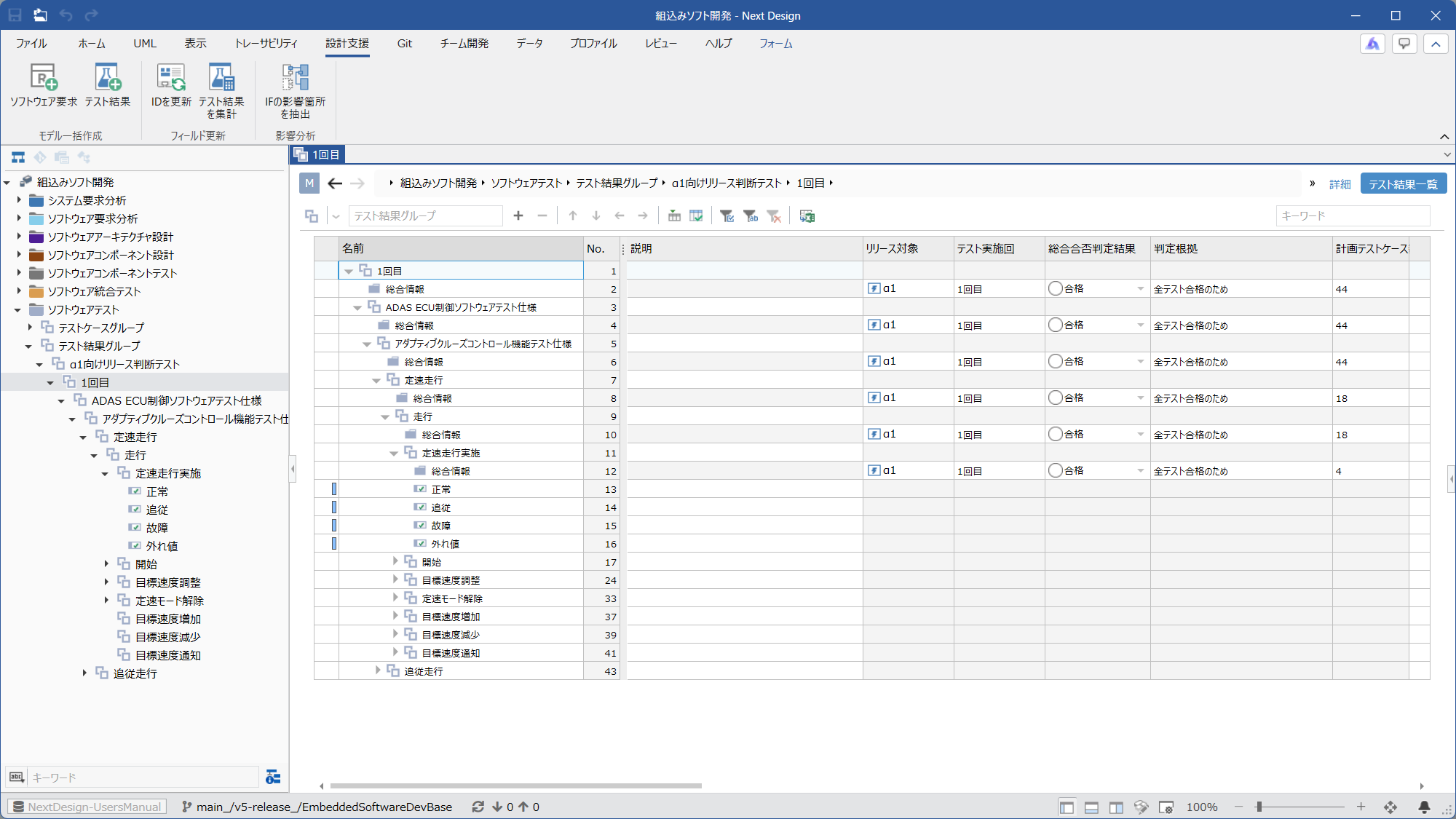 | Ⓜ Main Editor • Model: [TestResultGroup] • View: [TestResult List] Ⓢ Sub Editor • None | The empty [TestResult] defined in "D6.1.2. Defining the test scope" is the test scope. In the tree grid-style [TestResult List] view, you can expand the tree hierarchy to the end and then filter the [Tester] column to see the division of labor, or view the test status at a glance using [Pass_FailStatus]. |
| └ D6.2.2. Check the details of the test case to be executed | 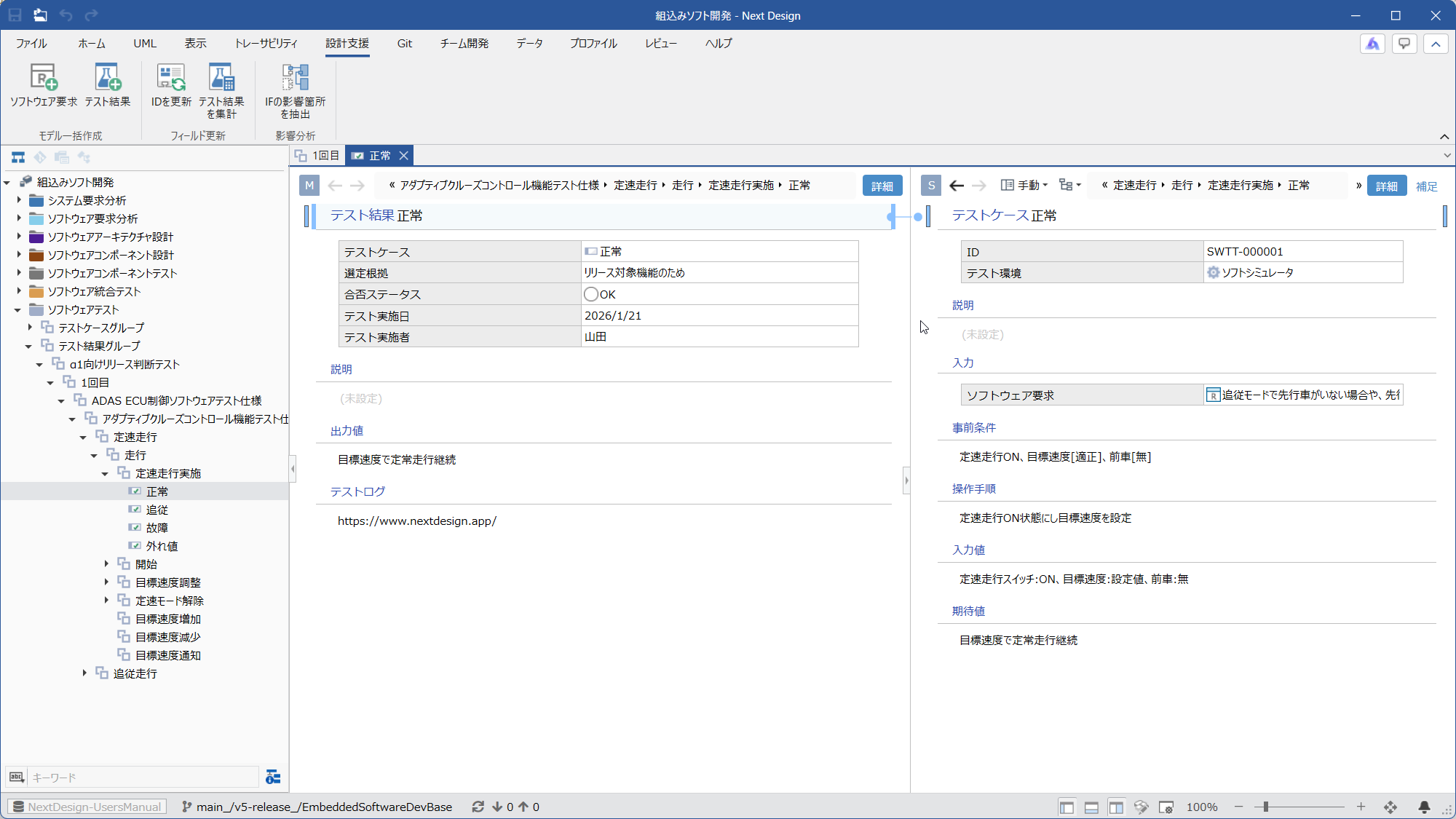 | Ⓜ Main Editor • Model: [TestResult] • View: [Detail] Ⓢ Sub Editor • Display Mode: [Manual] • Model: [Test case] • View: [Detail] and [AdditionalInformation] | Select [TestResult] at the end of the tree hierarchy from the test execution scope confirmed in "D6.2.1. Viewing the test execution scope," and open that model in a new tab from the context menu. Next, open the source [Test case] in the sub-editor using the indicator at the top left of the model editor. This will allow you to view the details of the test case to be executed. |
| └ D6.2.3. Record test results for each test case | 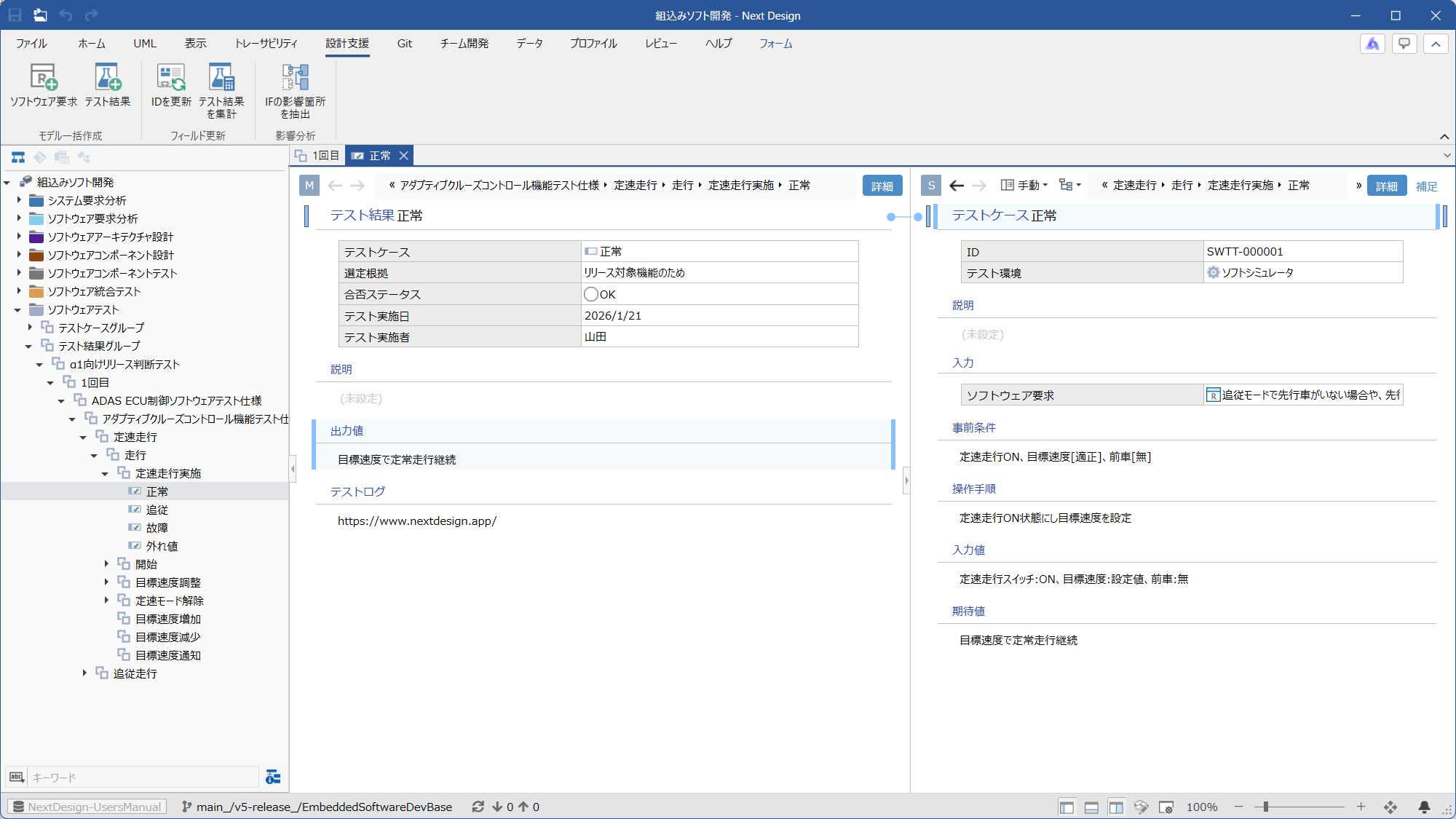 | Ⓜ Main Editor • Model: [TestResult] • View: [Detail] Ⓢ Sub Editor • Display Mode: [Manual] • Model: [Test case] • View: [Detail] and [AdditionalInformation] | You can perform tests while checking the details of [Test case] and record [Pass_FailStatus] etc. in [TestResult] along with the actual [OutputValues] and [TestLog]. |
| └ D6.2.4. Aggregating Test Results | 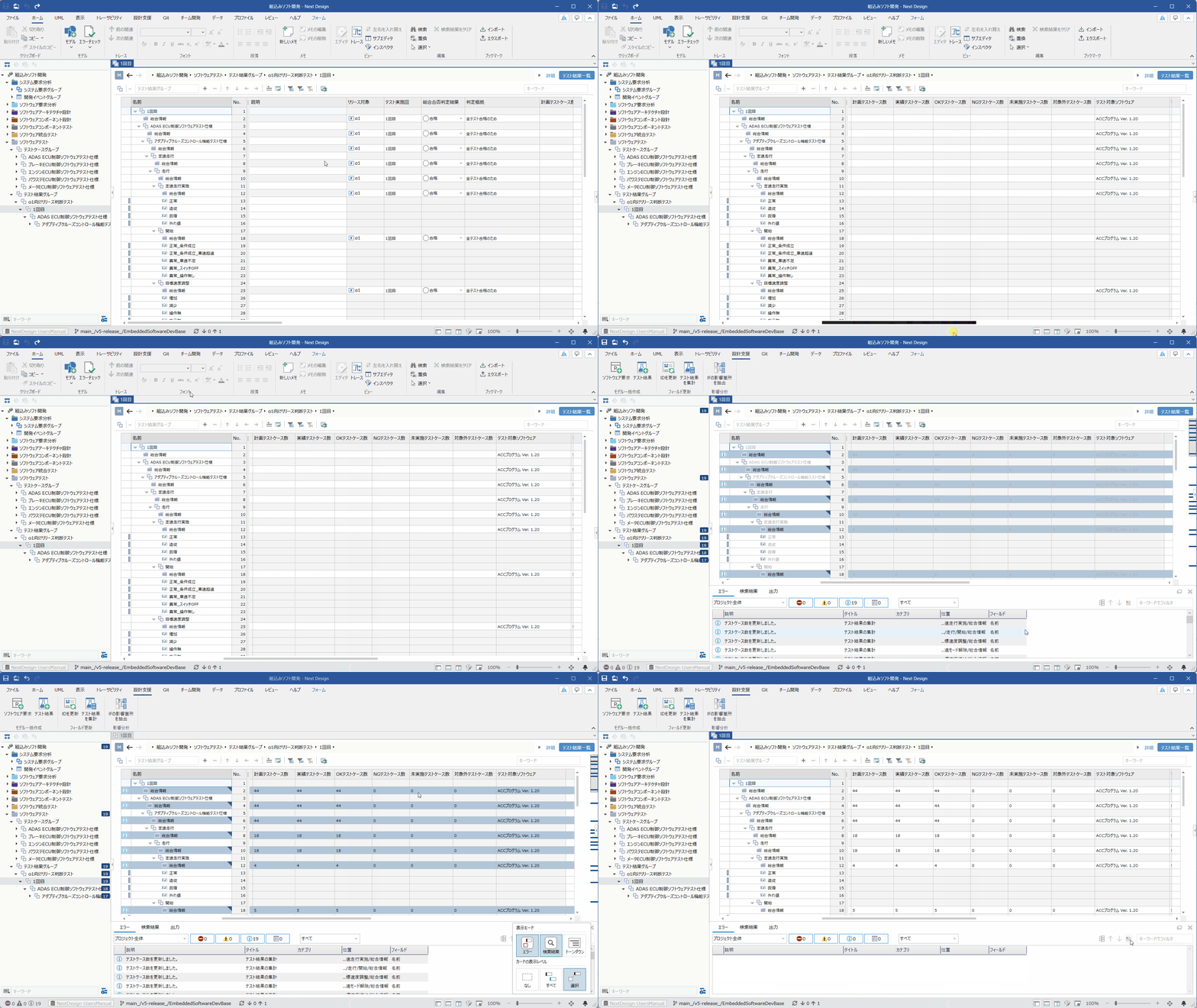 | Ⓜ Main Editor • Model: [TestResultGroup] • View: [TestResult List] Ⓢ Sub Editor • None | By selecting [TestResultGroup] or [GeneralInformation] for each test result group, and clicking the [Design Support] > [Field Update] > [Aggregate Test Results] button on the ribbon tab, the extension function automatically aggregates the [TestResult] under the selected group, allowing you to check [Number of Test Cases Executed], etc. |