Submodule (Git Submodule)
Overview
This feature supports consistent Git operations in repository configurations that include submodules, allowing you to switch between target and display repositories for NDGit operations.
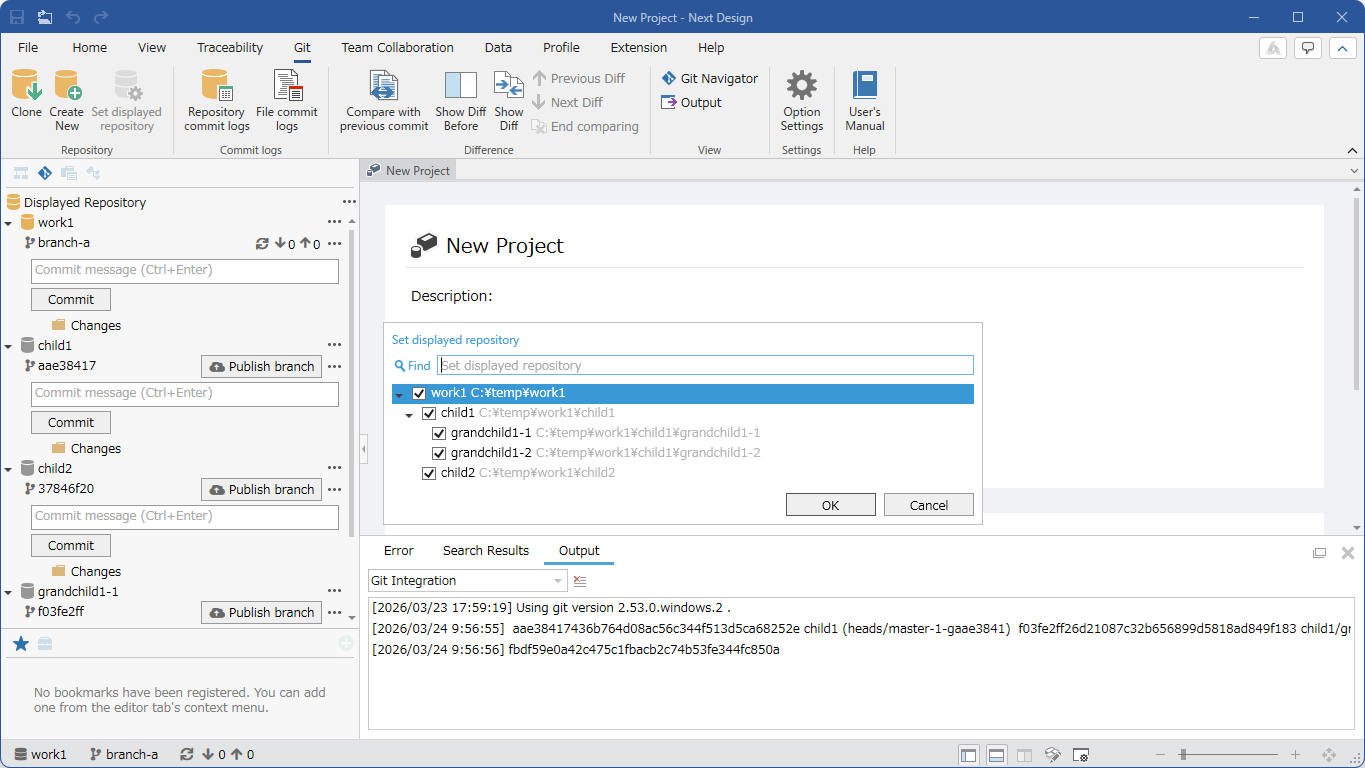
This page explains how to use NDGit in environments with submodules, in the following order:
- Experience Scenarios (1-3)
- Basic Terminology and Concepts
- Setting the Display Target Repository
- Switching the Current Repository
- Branch Switching and Submodule Following
- Repository Updates (Fetch/Pull/Sync)
- Notes on Checking Differences and History
- It is assumed that the Git repository environment/configuration (including submodule settings) has been built outside of Next Design.
Experience Scenarios (1-3)
To grasp the overall picture of submodule operation, we will show typical flows as scenarios.
Scenario 1: Cloning the Repository and Initializing Submodules
When dealing with a repository containing submodules for the first time, ensure that the submodules are available immediately after cloning.
Operation Flow
- Click [Git] > [Repository] > [Clone] on the ribbon.
- In the [Clone Repository] dialog box, specify the [URL] and [Directory], and click the [OK] button.
- After cloning is complete, initialization will be performed to make the submodules available.
- For details on the cloning operation, please refer to Clone Repository.
- If submodule initialization fails, please refer to "Submodule Initialization" at the end of this page.
Scenario 2: Branch Synchronization and Setting the Target Repository
This scenario involves switching to the target branch and then switching the target repository (current repository) in a multi-repository (including submodules) configuration.
Operation Flow
- Open the target project in Next Design.
- Set the repositories to be displayed as needed. (Details here)
- Set the root (parent) repository as the current repository. (Details here)
- Switch branches. If the option is ON, the commits referenced in the submodules will also switch. (Details here)
- After switching branches, synchronize to the latest state according to the project reload confirmation as needed.
- Switch your assigned repository to the current repository and start working.
- For submodule operation, we recommend turning on the option "Change submodule branches when changing branches."
When the parent repository's branch is switched, the submodule will automatically follow, maintaining consistency between the parent and submodule.
Scenario 3: Design Changes within the Assigned Repository
This scenario involves making design changes in the assigned repository (current repository), and performing diff confirmation, commit, and push operations within NDGit.
Operation Flow
- Open the target project in Next Design.
- If NDGit detects updates, perform an update (fetch/pull/sync, etc.). (Details here)
- Make design changes within your assigned area.
- Stage the changes, commit, and push. (Details here)
- If necessary, check the changes by comparing with previous commits. (Details here)
- If necessary, perform merges or revert changes (revert/discard, etc.). (Related here)
Basic Terminology and Concepts
In configurations including submodules, organize the targets of operations using the following concepts:
-
Display Target Repositories
-
These are repositories that are displayed in the Git Navigator and can be the target of list operations (update/pull/push/fetch, etc.).
-
The initial value is "the repository to which the project files belong."
-
Current Repository
-
This is the repository treated as the center for the status bar and Git operations.
-
Only one can be selected from the display target repositories.
-
Hidden Repositories
-
These are repositories that have not been selected as display targets.
-
However, if there are changes, they may be temporarily displayed in the Git Navigator.
- If there are no submodules, a single repository is always the current repository.
Setting Visible Repositories
In configurations including submodules, select the repositories (including submodules) you want to display in the Git Navigator.
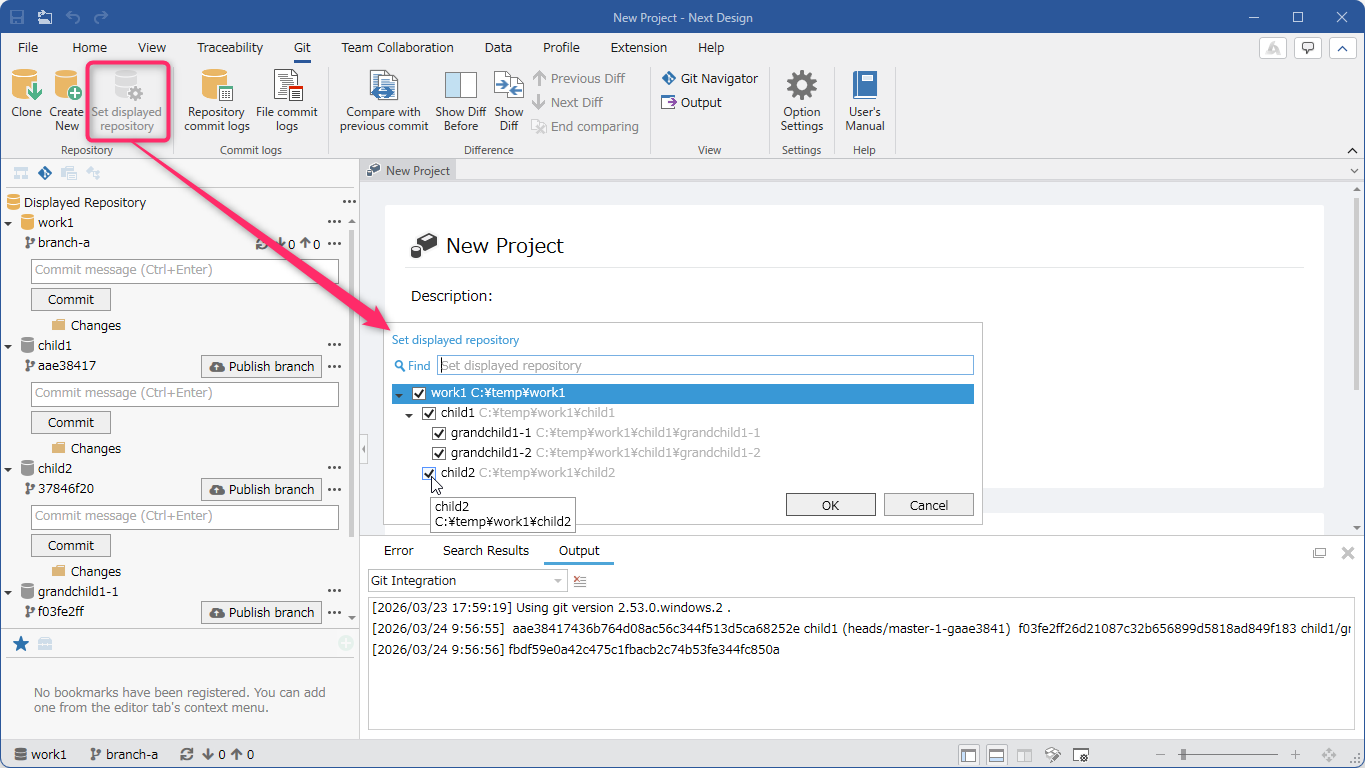
:::note: Procedure
-
Click [Git] > [Repository] > [Set Visible Repositories] on the ribbon.
-
From the displayed list, check the repositories you want to display in the Git Navigator and confirm.
:::
Switching the Current Repository
By switching the current repository, you can switch the repository referenced in the status bar display, commit history dialog, etc.
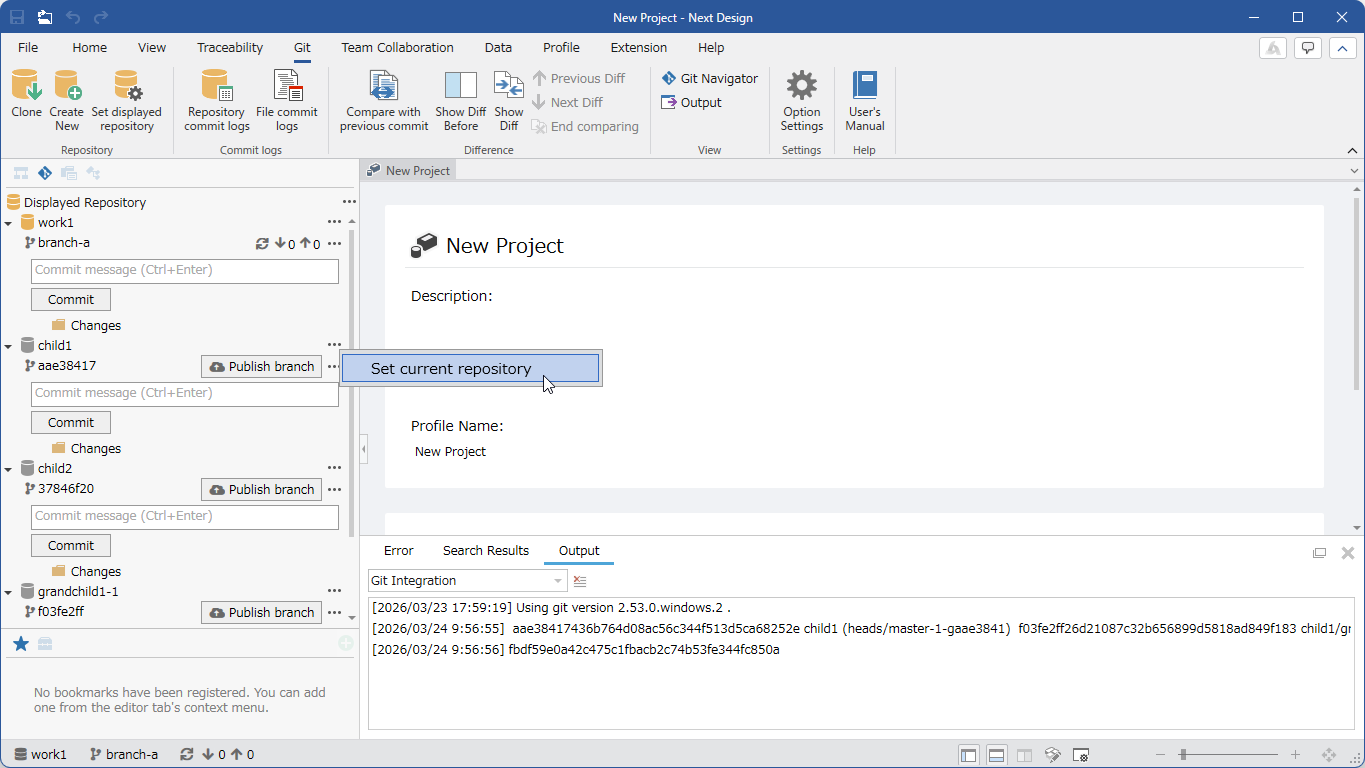
:::note: Instructions
When operating from the Git Navigator:
-
In the Git Navigator, find the node of the repository you want to make the current repository.
-
Click the three dots on the far right.
-
Click [Make Current Repository].
:::
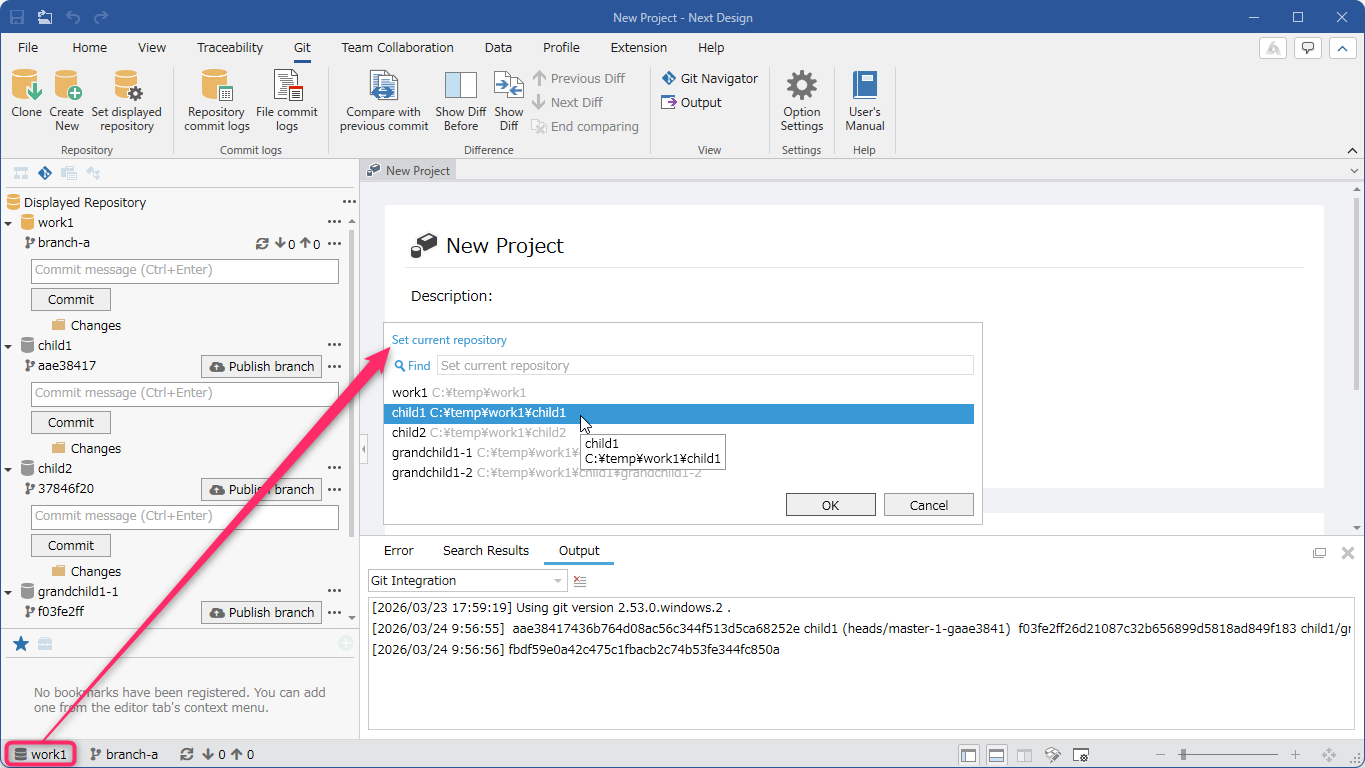
:::note: Instructions
When operating from the Status Bar:
-
Click the current repository name displayed in the status bar.
-
From the displayed list of repositories, select the repository you want to make the current repository.
:::
- The current repository can only be selected from the repositories displayed.
Branch Switching and Submodule Following
In configurations including submodules, you can choose whether to "switch only the target repository" or "switch consistently, including submodules" when switching branches.
- When the option [Change submodule branches when changing branches] is ON, the commits referenced by the submodule will also be switched in accordance with the branch switch of the target repository.
- When OFF, only the target repository will be switched.
- ON is recommended for submodule operations.
When OFF, submodule references may not switch, and the parent repository may not have the expected combination.
Repository Updates (Fetch/Pull/Sync)
When there are multiple repositories to display, you can use batch operations on the displayed repositories.
- For basic operations, please refer to Retrieving the Latest Files from the Repository.
- After a Git operation (pull, etc.) is complete, if there are changes to the open project, a reload confirmation will be displayed. Please avoid editing until the operation is complete.
Notes on Checking Differences and History
In configurations including submodules, please be aware of which repository's history/differences you are viewing.
-
The commit history displays that of the current repository.
-
Comparison operations such as "Compare with Previous Commit" may not be available if the current repository is not the one to which the project files belong.
- For checking differences themselves, please refer to Checking Model Change Differences.